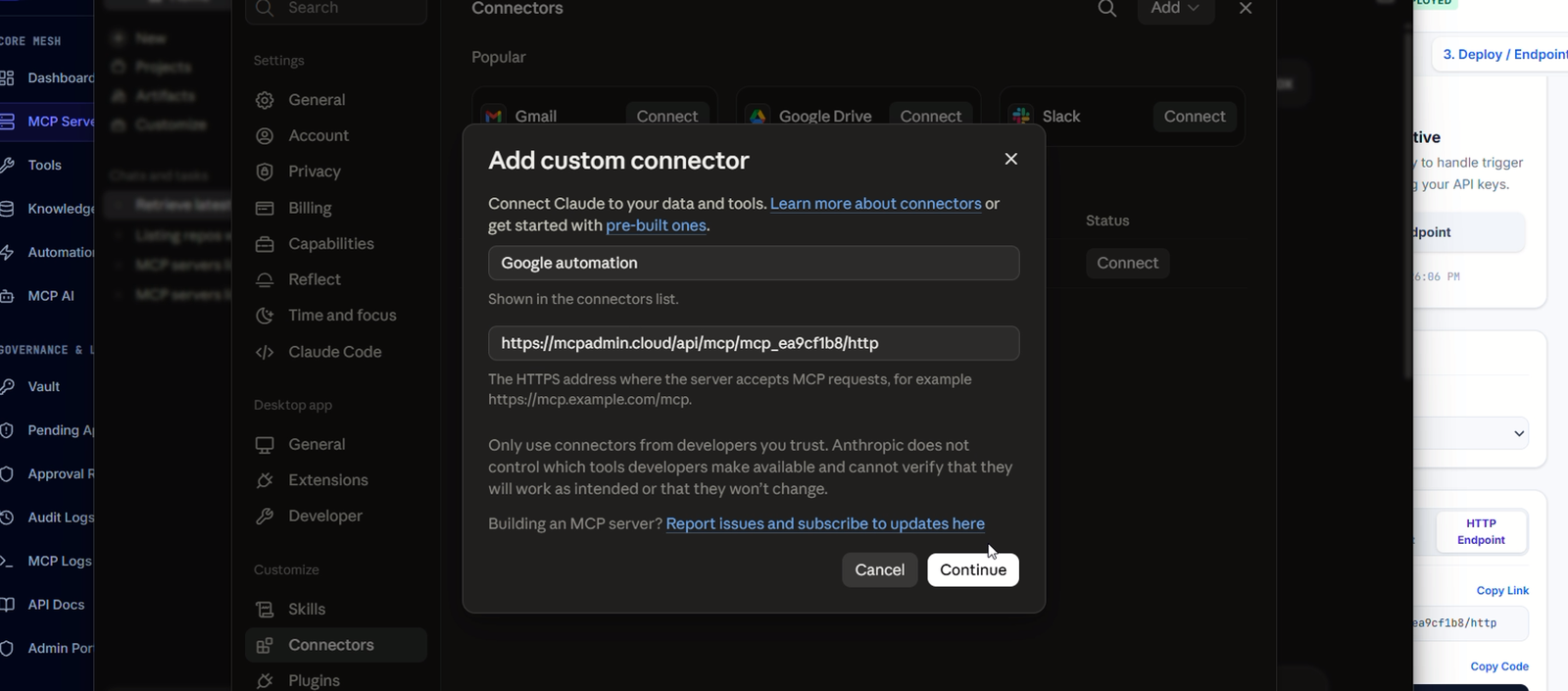
How to Connect MCP Servers from MCP Admin to Claude Desktop via Connectors (Complete Guide)
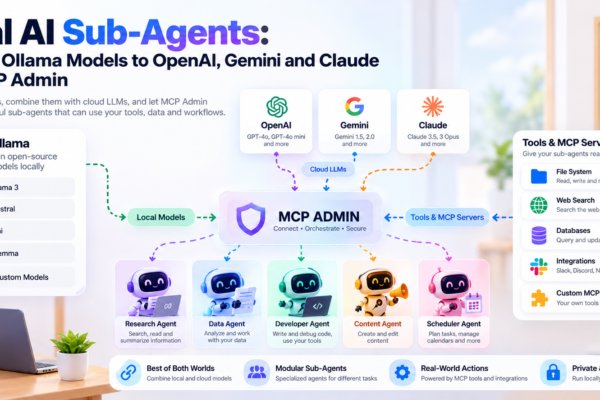
The Problem: You’ve built powerful MCP servers on MCP Admin. They handle webhooks, integrate with external tools, and orchestrate AI agents. But they’re locked to the web interface.
The Solution: Connect your MCP Admin servers directly to Claude Desktop as native connectors. Now Claude Desktop becomes your AI command center—with full access to all your custom tools, automations, and integrations.
Result: Use Claude Desktop to interact with your entire MCP Admin infrastructure. No more switching between interfaces. One unified AI workspace.
This comprehensive guide shows you exactly how to set up the connection, what each step does, real examples, and advanced configurations.
What Are MCP Servers & Why Connect Them to Claude Desktop?
The MCP Ecosystem
An MCP (Model Context Protocol) server is a standardized interface that exposes tools to Claude. Think of it as a bridge between Claude and your infrastructure.
Traditional setup (Limited):
Claude Web → MCP Admin Interface → Your ToolsConnected setup (Powerful):
Claude Desktop ↔ MCP Admin Server ↔ Your Tools
                    (direct connection)
Why Connect MCP Admin to Claude Desktop?
1. Native Integration
- Claude Desktop sees MCP servers as native tools
- No API limitations or rate limiting
- Direct, low-latency communication
2. Unified Workspace
- All your MCP Admin tools available in Claude Desktop
- One interface for reasoning + tool use
- Faster workflows
3. Offline Capability
- Claude Desktop works offline (with cached responses)
- MCP servers can run locally or in cloud
- Hybrid setup possible
4. Advanced Reasoning
- Claude’s desktop version has extended thinking
- Better for complex reasoning with tool access
- More context window usage
5. Custom Workflows
- Chain multiple MCP servers together
- Create sophisticated automation scenarios
- Full programmatic control
Prerequisites
Before connecting, you’ll need:
1. Claude Desktop Installed
- Download from Claude.com
- Works on Mac, Windows, and Linux
- Version 0.4.0 or higher recommended
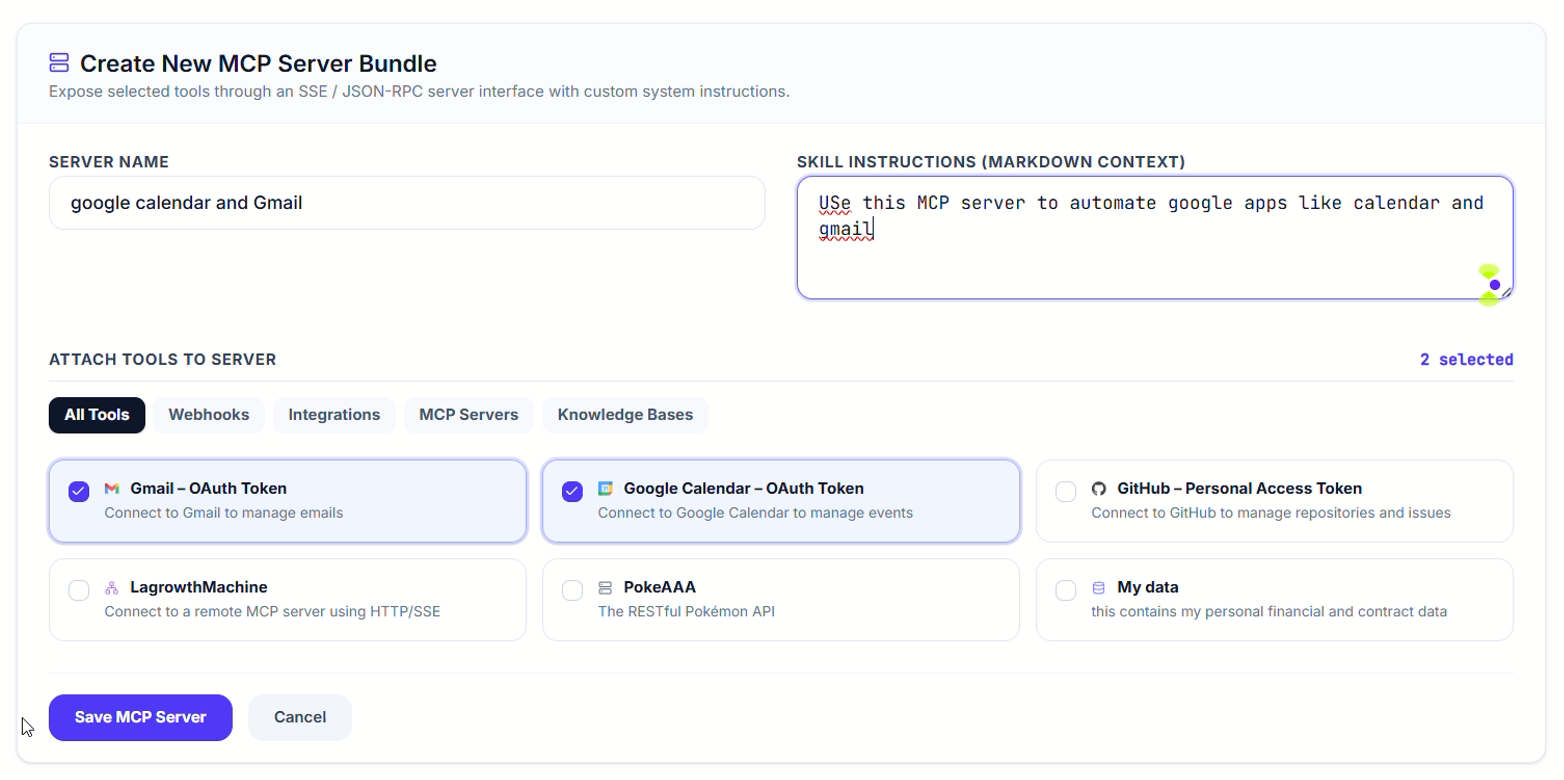
2. MCP Admin Account
- Sign up at mcpadmin.cloud
- Free tier includes everything you need
- Create at least one MCP server
3. Your MCP Admin Server URL
- Located in MCP Admin dashboard
- Get this from MCP Admin deployed server
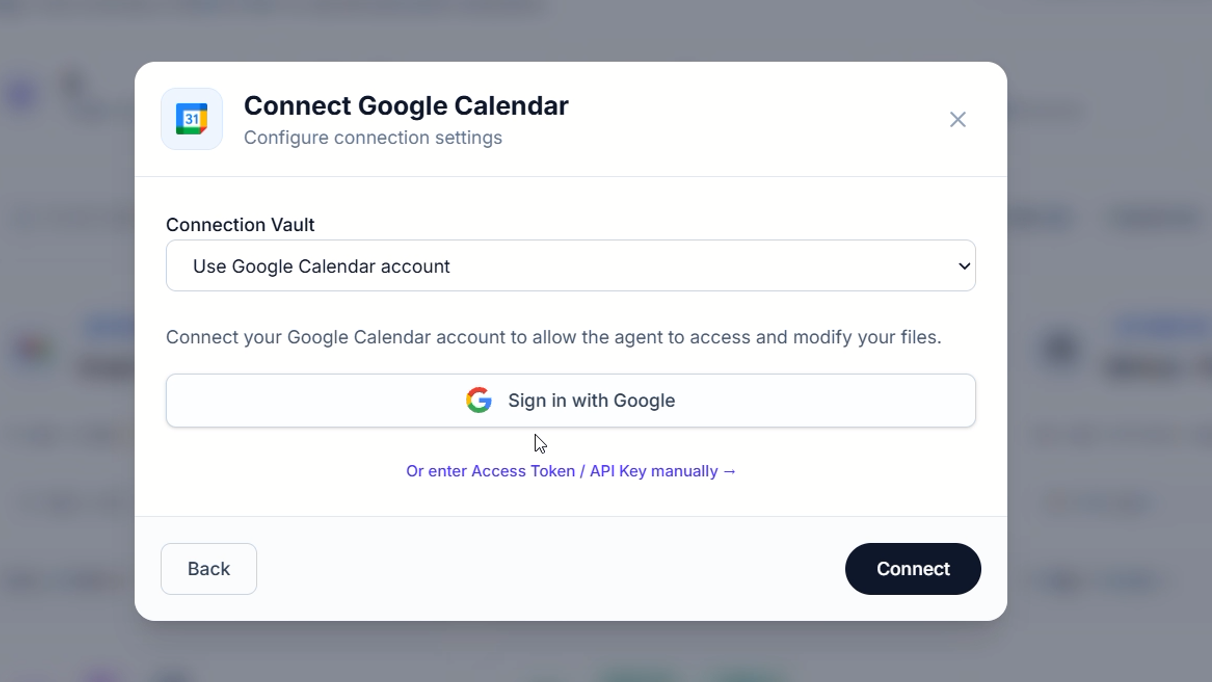
4. Connect to Claude using API Key / OAuth / Bearer token
- Some MCP Admin instances require authentication – API key, Bearer token or OAuth
- Available in your MCP Admin account settings
- Copy and keep secure
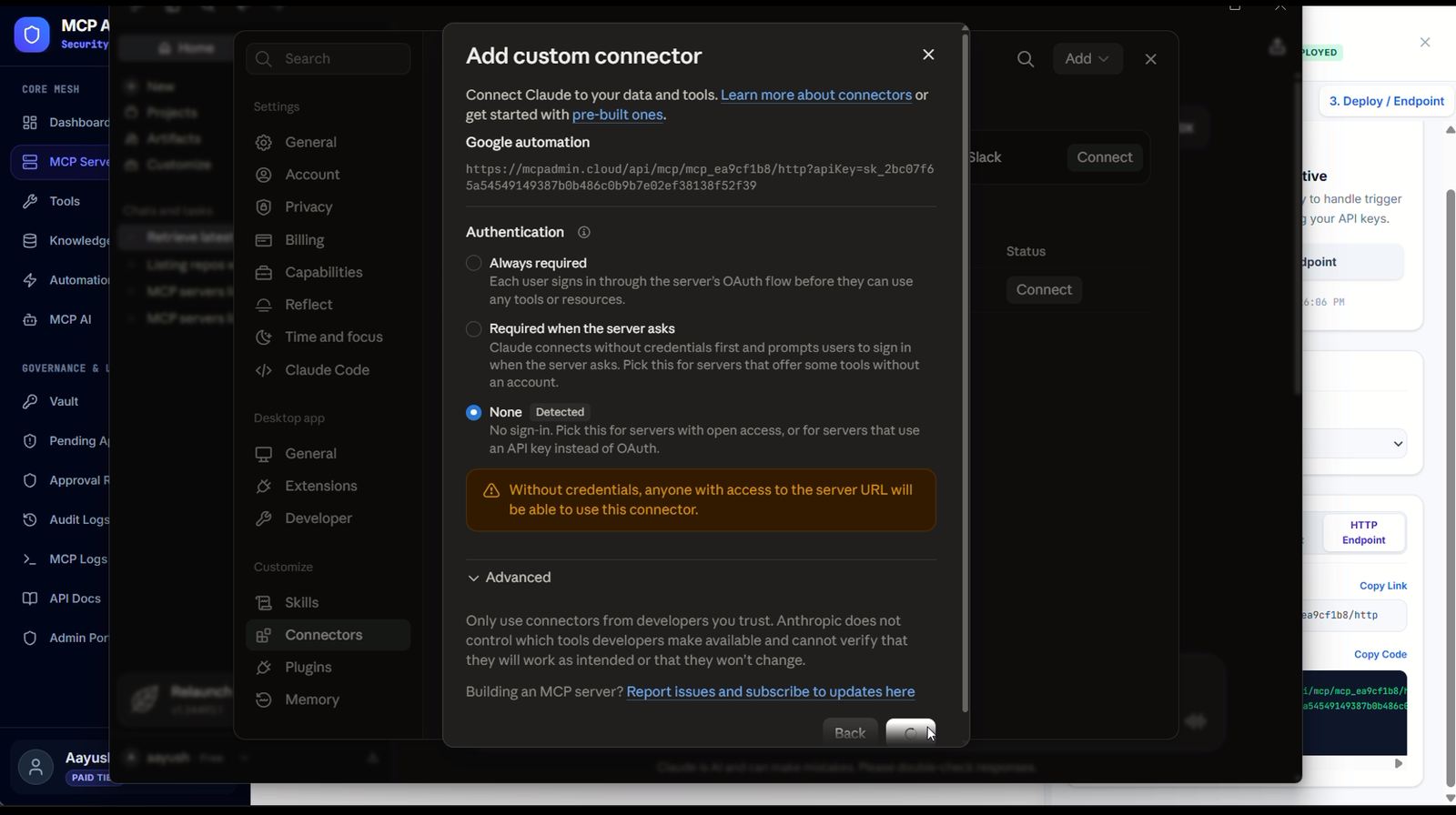
Step-by-Step: Connect MCP Admin to Claude Desktop using server.json
Step 1: Locate Claude Desktop Configuration File
Claude Desktop stores connector configurations in a special file. The location depends on your OS:
macOS:
~/Library/Application Support/Claude/claude_desktop_config.jsonWindows:
C:\Users\[YourUsername]\AppData\Roaming\Claude\claude_desktop_config.jsonLinux:
~/.config/Claude/claude_desktop_config.jsonStep 2: Open the Configuration File
Use any text editor:
- macOS: TextEdit, VS Code, Sublime Text
- Windows: Notepad, VS Code, Notepad++
- Linux: nano, vim, VS Code
Important: Use a plain text editor, NOT Word or Google Docs
Step 3: Add Your MCP Admin Connector
Edit the file with this basic configuration:
{
  "mcpServers": {
    "mcp-admin": {
      "command": "npx",
      "args": [
        "@mcpadmin/client",
        "--server-url",
        "https://your-mcp-admin-instance.com",
        "--api-key",
        "your-api-key-here"
      ]
    }
  }
}
Step 4: Configure with Your Details
Replace these placeholders:
https://your-mcp-admin-instance.com→ Your actual MCP Admin URLyour-api-key-here→ Your MCP Admin API key
Example (Real Setup):
{
  "mcpServers": {
    "mcp-admin": {
      "command": "npx",
      "args": [
        "@mcpadmin/client",
        "--server-url",
        "https://mcp.mcpadmin.cloud",
        "--api-key",
        "sk_live_abc123def456ghi789jkl"
      ]
    }
  }
}
Step 5: Save the File
- Save with UTF-8 encoding (default)
- Don’t change the filename
- Keep the exact location
Step 6: Restart Claude Desktop
- Close Claude Desktop completely (don’t minimize)
- Wait 2-3 seconds
- Reopen Claude Desktop
Step 7: Verify Connection
In Claude Desktop:
- Open a new conversation
- Look for “Tools” section or icon (usually bottom-left)
- You should see “mcp-admin” listed
- Click to expand and see available tools
- Test by asking: “Search the web for ‘AI news today'”
Claude should now have access to all your MCP Admin tools!
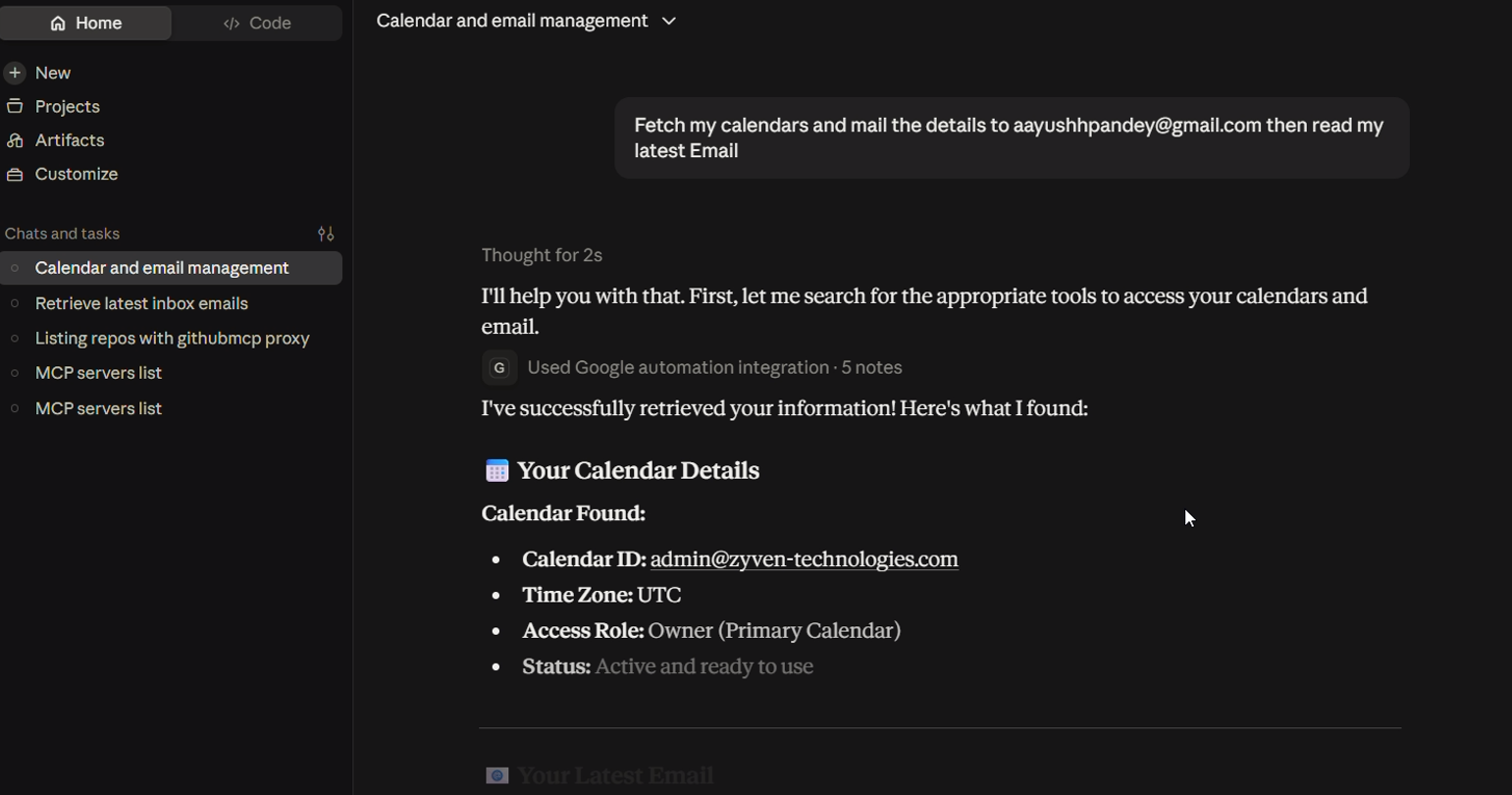
Real Examples: What You Can Do
Example 1: Web Research with AI Analysis
What you type: “Research the latest AI trends and summarize top 5”
What happens:
- Claude Desktop recognizes request
- Claude uses “search_web” tool from MCP Admin
- Unlimited web searches execute
- Results return to Claude
- Claude synthesizes findings
- You get organized summary
Cost: $0 platform (MCP Admin), only pay Claude API tokens
Example 2: Multi-Model Task Orchestration
What you type: “Create blog post: analyze competitors, generate outline, create images, optimize for SEO”
What Claude does:
- Plans entire workflow
- Calls search_web for competitor analysis
- Calls ask_claude (Opus) for outline
- Calls ask_chatgpt (GPT-4) for images
- Calls ask_gemini for SEO
- Integrates all results
All coordinated through one interface!
Example 3: Automated Customer Support
Setup: MCP Admin with customer database, ticket system, knowledge base
What you type: “Show open support tickets, summarize issues, draft responses using knowledge base”
What happens:
- Claude calls webhook → fetch tickets
- Claude analyzes each ticket
- Claude queries knowledge base (vector search)
- Claude drafts personalized responses
- You review and approve one-click
- Claude sends via API
Use Cases: What Teams Are Building
Marketing Agencies
Using: MCP Admin + Claude Desktop
What they do:
- Research competitors daily (web search)
- Generate content ideas (Claude reasoning)
- Create social posts (multi-format)
- Analyze performance (web search)
- Report to clients (automated)
Results: 20 hours/week saved per team member
Software Development Teams
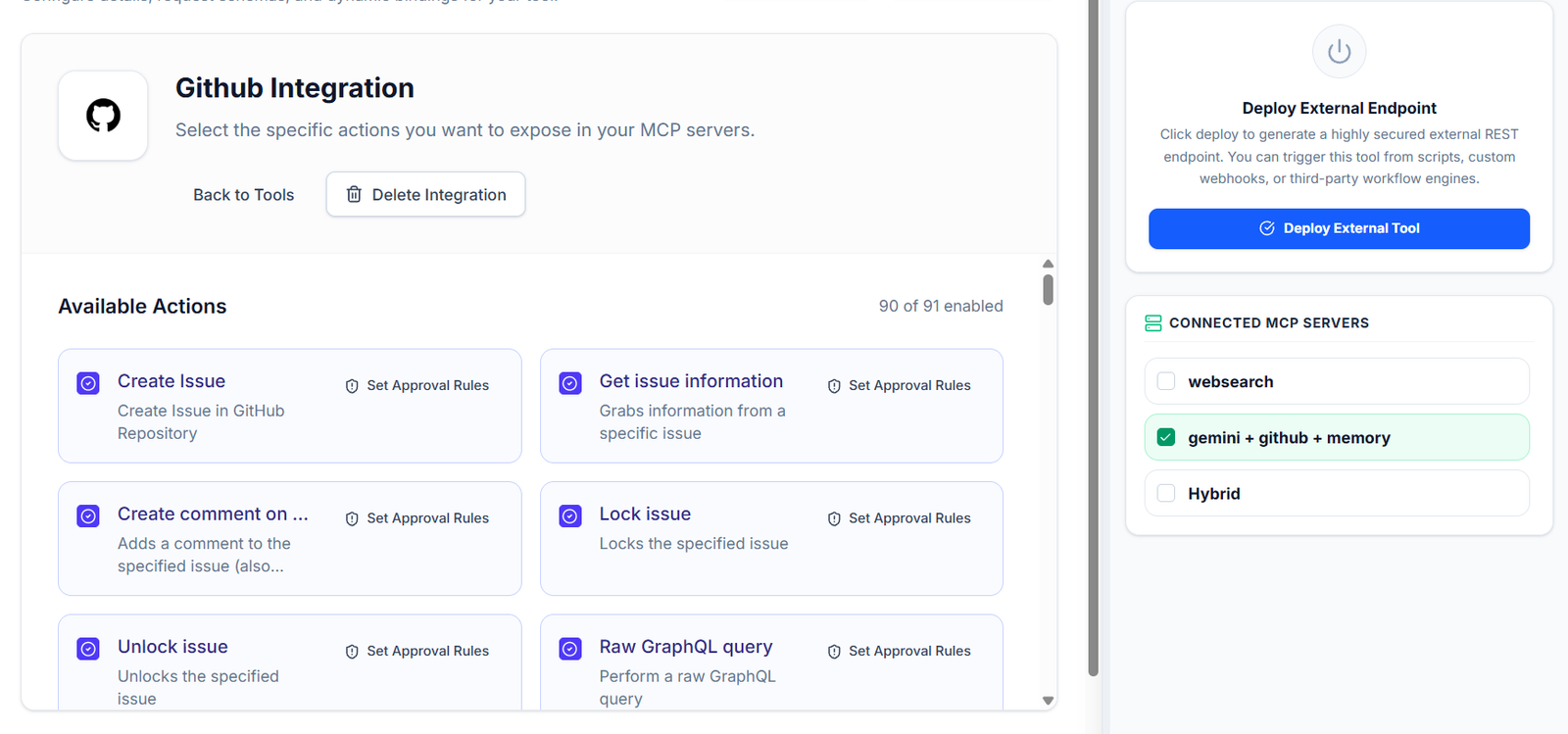
Using: MCP Admin with GitHub, Jira, Slack
What they do:
- Code review assistance
- Bug analysis
- Test generation
- Auto-documentation
- Team coordination
Results: 30% faster development
Troubleshooting: Common Issues
Issue 1: “MCP Server Not Found”
Solutions:
- Check configuration file path
- Validate JSON syntax (use JSONLint.com)
- Restart Claude Desktop completely
- Verify server URL in browser
Issue 2: “Authentication Failed”
Solutions:
- Verify API key in MCP Admin settings
- Check for extra spaces in key
- Regenerate key if needed
- Update config and restart
Issue 3: “Connection Timeout”
Solutions:
- Check internet connection
- Verify MCP Admin server status
- Try connecting from different network
- Add timeout config (30000ms)
Security Best Practices
API Key Management
✅ Do:
- Use environment variables, not hardcoded
- Rotate keys regularly (monthly)
- Use unique keys per integration
- Store in password manager
❌ Don’t:
- Commit keys to git/GitHub
- Share via email or Slack
- Use in public config
- Reuse same key everywhere
Advanced Configurations
Multiple MCP Instances (Prod + Staging)
{
  "mcpServers": {
    "mcp-admin-prod": {
      "command": "npx",
      "args": ["@mcpadmin/client", "--server-url", "https://prod-mcp.example.com", "--api-key", "prod-key"]
    },
    "mcp-admin-staging": {
      "command": "npx",
      "args": ["@mcpadmin/client", "--server-url", "https://staging-mcp.example.com", "--api-key", "staging-key"]
    }
  }
}
Tool Whitelisting (Security)
"args": [
  "@mcpadmin/client",
  "--server-url", "https://mcp.example.com",
  "--api-key", "your-key",
  "--tools-whitelist", "search_web,query_knowledge_base,ask_claude"
]
Environment Variables
"args": [
  "@mcpadmin/client",
  "--server-url", "${MCP_ADMIN_URL}",
  "--api-key", "${MCP_ADMIN_API_KEY}"
]
Next Steps
Once connected to MCP Admin, you can:
- Create custom MCP servers
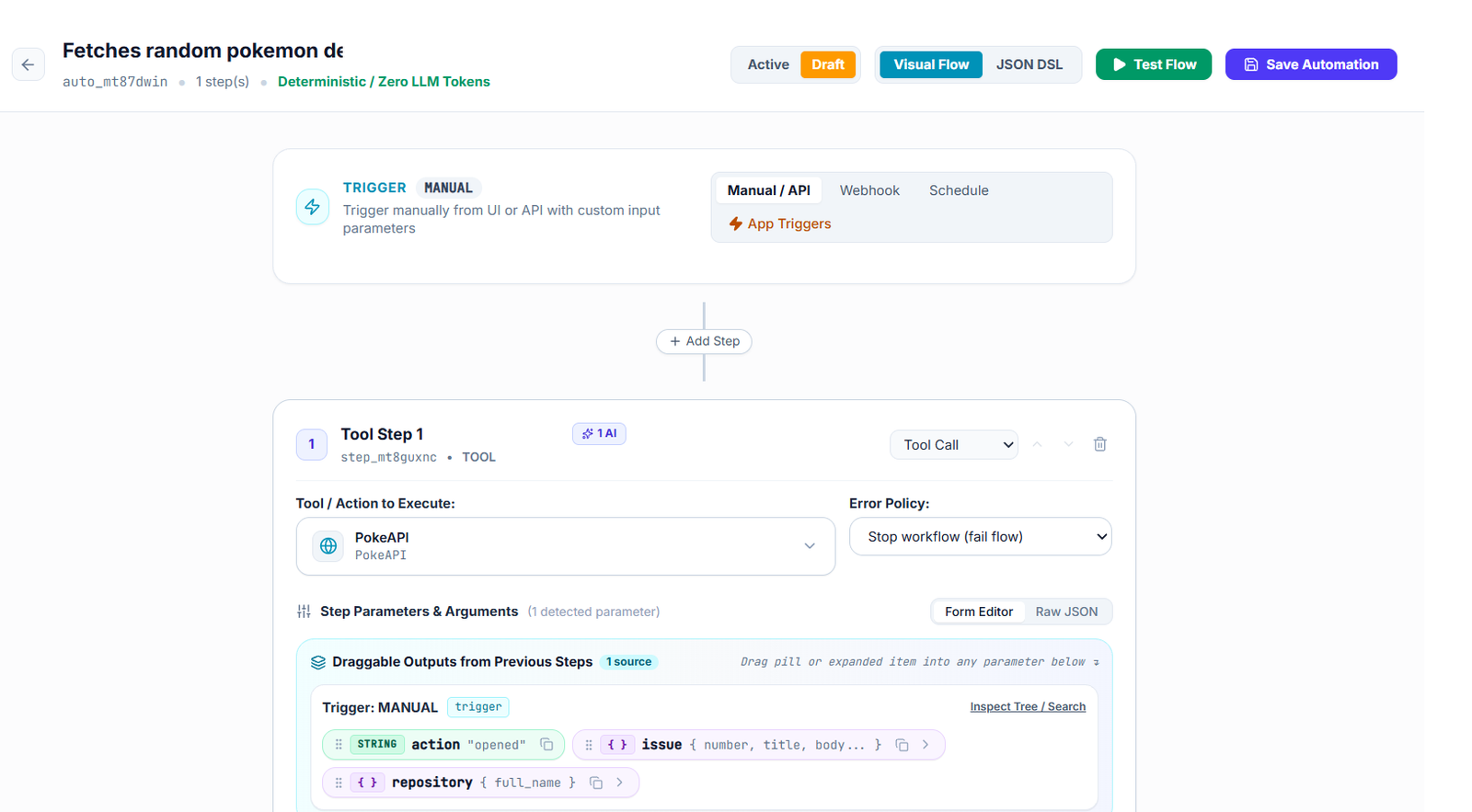
- Build automations triggered from Claude Desktop
- Connect multiple instances (prod/staging)
- Set up approval rules
- Monitor usage via dashboard
Conclusion: Your AI Command Center
By connecting MCP Admin servers to Claude Desktop, you’ve created a unified AI workspace where:
- ✅ Claude has unlimited access to your tools
- ✅ All integrations work natively
- ✅ Web search is unlimited
- ✅ Knowledge bases are searchable
- ✅ Automations are triggered
- ✅ Complex workflows are coordinated
One interface. All your power. No context switching.
Get started now:
- Download Claude Desktop
- Sign up at mcpadmin.cloud
- Follow the setup guide above
- Start building sophisticated AI workflows
Welcome to the future of AI automation.
FAQ
Q: Can I connect multiple MCP Admin instances to Claude Desktop?
A: Yes! Add multiple entries in your config file (see advanced section).
Q: Do I need a paid MCP Admin plan?
A: No. Free tier at mcpadmin.cloud includes unlimited webhooks, web search, and 500MB storage.
Q: What if MCP Admin goes down?
A: Claude Desktop shows error but keeps working with cached tools.
Q: Can I use this for production?
A: Absolutely. Thousands of organizations run this in production.
Q: How much does this cost?
A: MCP Admin platform is free. Only pay for AI model tokens.
Q: Can I share with my team?
A: Yes, but use environment variables for API keys.
Q: Can I disconnect MCP Admin?
A: Yes, remove entry from config and restart Claude.
2 thoughts on “How to Connect MCP Servers from MCP Admin to Claude Desktop via Connectors (Complete Guide)”