Most AI calls generate text, and text is slow, expensive and hard to parse. Sometimes you only need a quick decision: is this message urgent, which team should handle it, how angry is this customer? OpenJEV is built for that. It is a decision model, not a chat model. You send a piece of text and a few typed questions, and it returns structured answers with probabilities in a few milliseconds, with no generated prose.
In this guide you’ll connect OpenJEV to MCP Admin as a custom HTTP tool, so any MCP-compatible client (Claude Desktop, Claude Code, Cursor and others) can call it as a tool.
What is OpenJEV?
OpenJEV is an open, Jev-compatible “System One” decision model. Rather than writing a reply, it evaluates a piece of state (a message, a JSON object or a chat history) against questions you define. Each question is one of three types:
| Type | What it returns | Best for |
|---|---|---|
noul | A probability (0 to 1) that the answer is true | Yes/no checks: urgency, refund request, spam |
choice | The best option plus a probability for every option | Routing and categorization |
score | A position on an ordered scale | Severity, sentiment, priority |
Because the model reads everything in one pass and generates no tokens, responses come back in milliseconds and cost very little.
Why run it through MCP Admin?
- One tool, many clients. Set it up once in MCP Admin and use it from every MCP client you connect.
- Keys stay in one place. Your API key lives in the tool’s authentication settings, not in prompts or client configs.
- Agents can triage for you. An AI assistant can classify a support ticket before deciding what to do with it.
Prerequisites
- An MCP Admin account at mcpadmin.cloud
- An OpenJEV account with access to the dashboard
- An MCP client such as Claude Desktop, if you want to test end to end
Step 1: Generate your OpenJEV API key
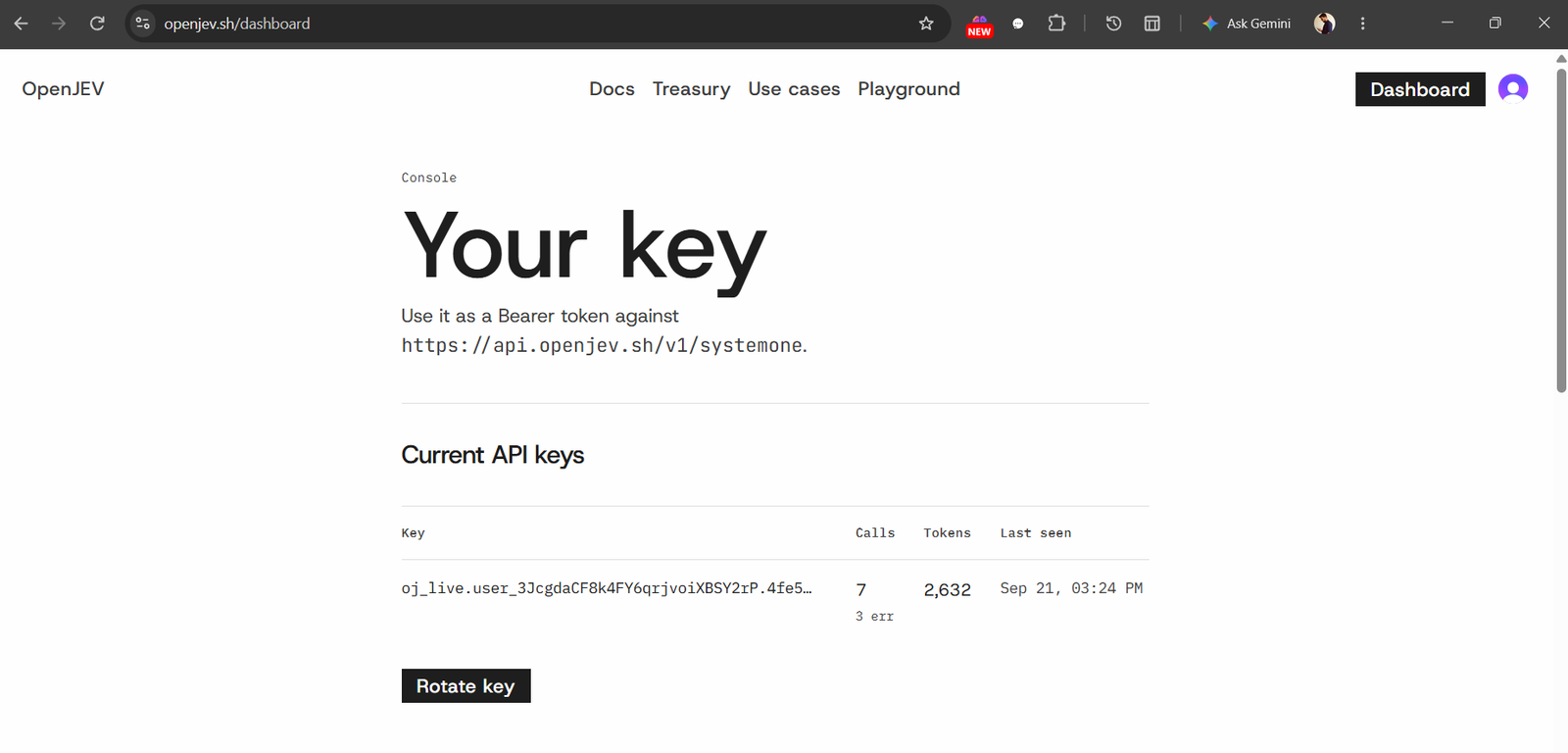
- Go to https://openjev.sh/dashboard and sign in.
- Find the API keys section and create a new key.
- Copy it immediately and store it somewhere safe. Treat it like a password and never paste it into a public repo, a screenshot or a shared chat.
Step 2: Create a custom HTTP tool on MCP Admin
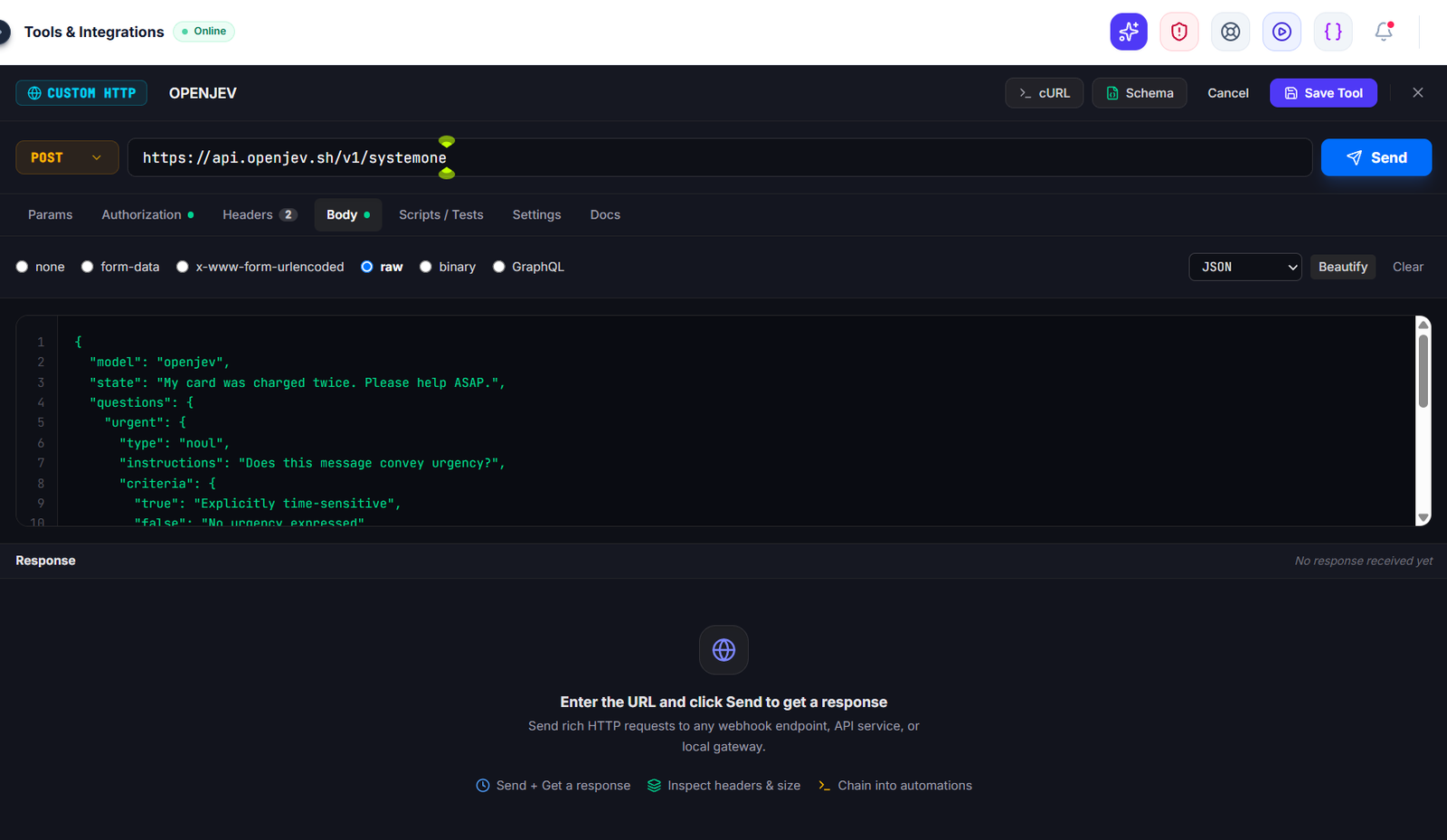
- Log in at https://mcpadmin.cloud/.
- Open the Tools section and choose Create Tool (custom HTTP/webhook tool).
- Give it a clear name and description, for example:
- Name:
openjev_classify - Description: “Classifies text with OpenJEV. Send a message and typed questions (noul, choice, score) and receive structured answers with probabilities.”
- Name:
- Set the method to POST and the URL to your OpenJEV endpoint (
YOUR_OPENJEV_ENDPOINT). - Set the header
Content-Type: application/json.
A good tool description matters here. The MCP client’s model reads it to decide when and how to call the tool.
Step 3: Add Bearer authentication
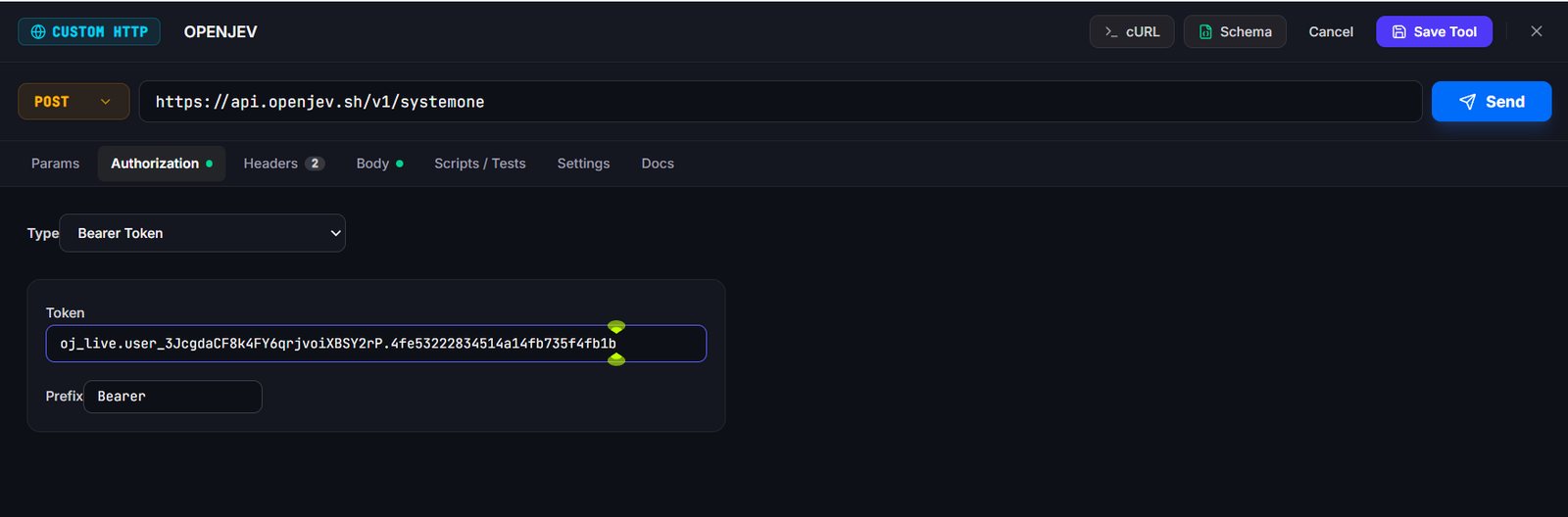
This is the step people most often miss. Without the key, every request fails with an authorization error.
- In the tool’s Authentication settings, choose Bearer Token.
- Paste the API key you generated in Step 1.
MCP Admin will send it as:
Authorization: Bearer YOUR_OPENJEV_API_KEY
Step 4: Define the request body
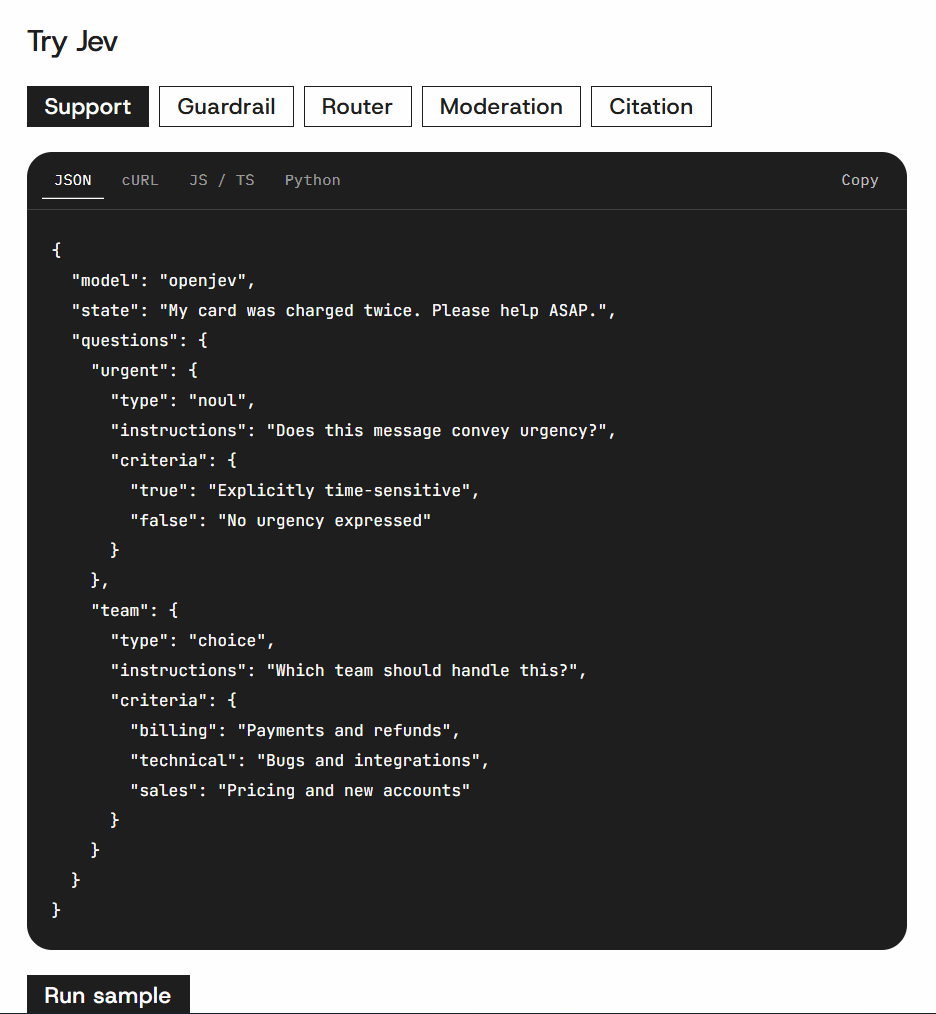
We’ll use the customer-care example from the OpenJEV playground. It answers two questions about an incoming support message: is it urgent, and which team should handle it.
{
  "model": "openjev",
  "state": "My card was charged twice. Please help ASAP.",
  "questions": {
    "urgent": {
      "type": "noul",
      "instructions": "Does this message convey urgency?",
      "criteria": {
        "true": "Explicitly time-sensitive",
        "false": "No urgency expressed"
      }
    },
    "team": {
      "type": "choice",
      "instructions": "Which team should handle this?",
      "criteria": {
        "billing": "Payments and refunds",
        "technical": "Bugs and integrations",
        "sales": "Pricing and new accounts"
      }
    }
  }
}
Here is what each part does:
model: the OpenJEV model to run.state: the text to evaluate. It can also be an object or an array of chat messages.questions: a named set of questions. Each needs atypeandinstructions. Achoicequestion needscriterialisting its options.criteria: short descriptions of each outcome. Clear descriptions give better accuracy.
Make the body dynamic
In the tool definition, expose state as a parameter so the client can pass in a different message each time. Keep the questions fixed if you always want the same triage logic, or expose them too for a more flexible tool.
Step 5: Test and read the response
Save the tool and run a test call with the sample message. You’ll get a structured answer in a few milliseconds. Its shape looks like this (values illustrative):
{
  "model": "openjev",
  "answers": {
    "urgent": { "type": "noul", "noul": 0.97 },
    "team": {
      "type": "choice",
      "choice": "billing",
      "confidence": 0.94,
      "probabilities": { "billing": 0.94, "technical": 0.04, "sales": 0.02 }
    }
  },
  "usage": { "input_tokens": 120, "output_tokens": 0 }
}
How to read it:
urgent: 0.97means the model is about 97% confident the message is urgent.team: billingmeans the double charge belongs with the billing team, and the full probability spread is included.output_tokens: 0confirms no text was generated, which is why it’s so fast and cheap.
Step 6: Add the tool to an MCP server and connect your client
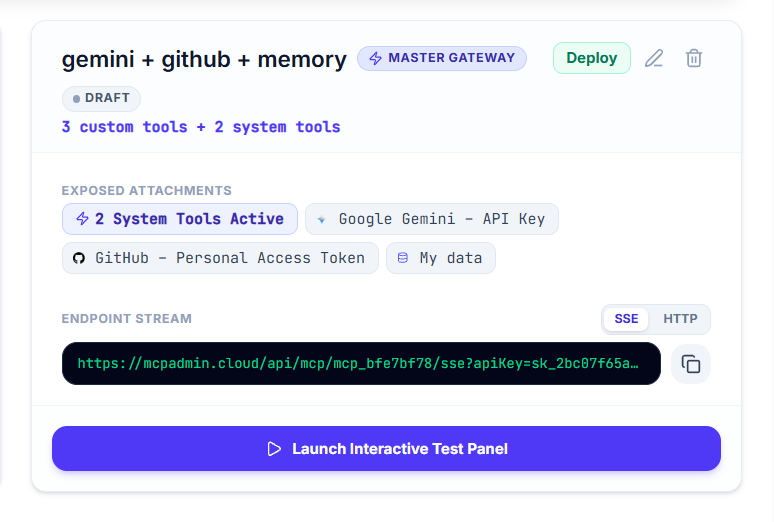
- In MCP Admin, create or open an MCP server and add the
openjev_classifytool to it. - Copy the server endpoint.
- Add it to your MCP client. For Claude Desktop, see our guide to connecting MCP Admin servers via Connectors.
- Ask your assistant something like: “Classify this ticket: ‘I can’t log in and my demo starts in 10 minutes.'” It will call the tool and act on the structured result.
Practical use cases
- Support triage: route tickets by team and urgency before a human sees them.
- Content moderation: flag messages with a
noulcheck like “Does this contain abuse?” - Lead qualification: use a
scorequestion to rate purchase intent from 0 to 4. - Sentiment routing: send angry customers to senior agents first.
- Agent guardrails: let an AI agent check “Is this action safe to run?” before it acts.
Tips for better results
- Write specific instructions. “Does the customer explicitly ask for a refund?” beats “Is this about money?”
- Keep criteria short and mutually exclusive. Overlapping options split the probability.
- Use thresholds. Treat
noulabove 0.8 as a clear yes and send borderline cases to a human. - Batch questions. Ask several questions about the same state in one request rather than making separate calls.
- Keep your key private. Rotate it from the OpenJEV dashboard if it’s ever exposed.
Troubleshooting
| Problem | Likely cause | Fix |
|---|---|---|
| 401 / 403 error | Missing or wrong Bearer token | Re-check the key in the tool’s Authentication settings |
| 400 / validation error | Malformed body or missing type / instructions | Validate your JSON and confirm each question has a type and instructions |
| Empty or odd answers | Vague instructions or overlapping criteria | Tighten the wording and make options distinct |
| Tool not appearing in client | Tool not added to the MCP server | Add it to the server and reconnect the client |
FAQ
Is OpenJEV a chatbot?
No. It doesn’t write replies. It makes typed judgments about text and returns probabilities.
How fast is it?
Responses typically return in a few milliseconds, since nothing is generated token by token.
Can I ask several questions at once?
Yes. Put as many named questions as you need in the questions object, and the answers come back under the same names.
Can I use it with any MCP client?
Yes. Once the tool is on an MCP Admin server, any client that supports MCP can call it.
Conclusion
With a free API key, one custom HTTP tool and a short JSON body, you’ve given your AI assistants a fast, structured way to make decisions. Start with the customer-care example above, then adapt the questions to your own workflows.
Two things to check before publishing. First, confirm the endpoint URL and the exact model name in your OpenJEV dashboard. Second, if you want a real screenshot-based walkthrough, run one test call and paste in the actual response so I can replace my illustrative values. I can also publish this to your WordPress blog as a draft if you’d like.