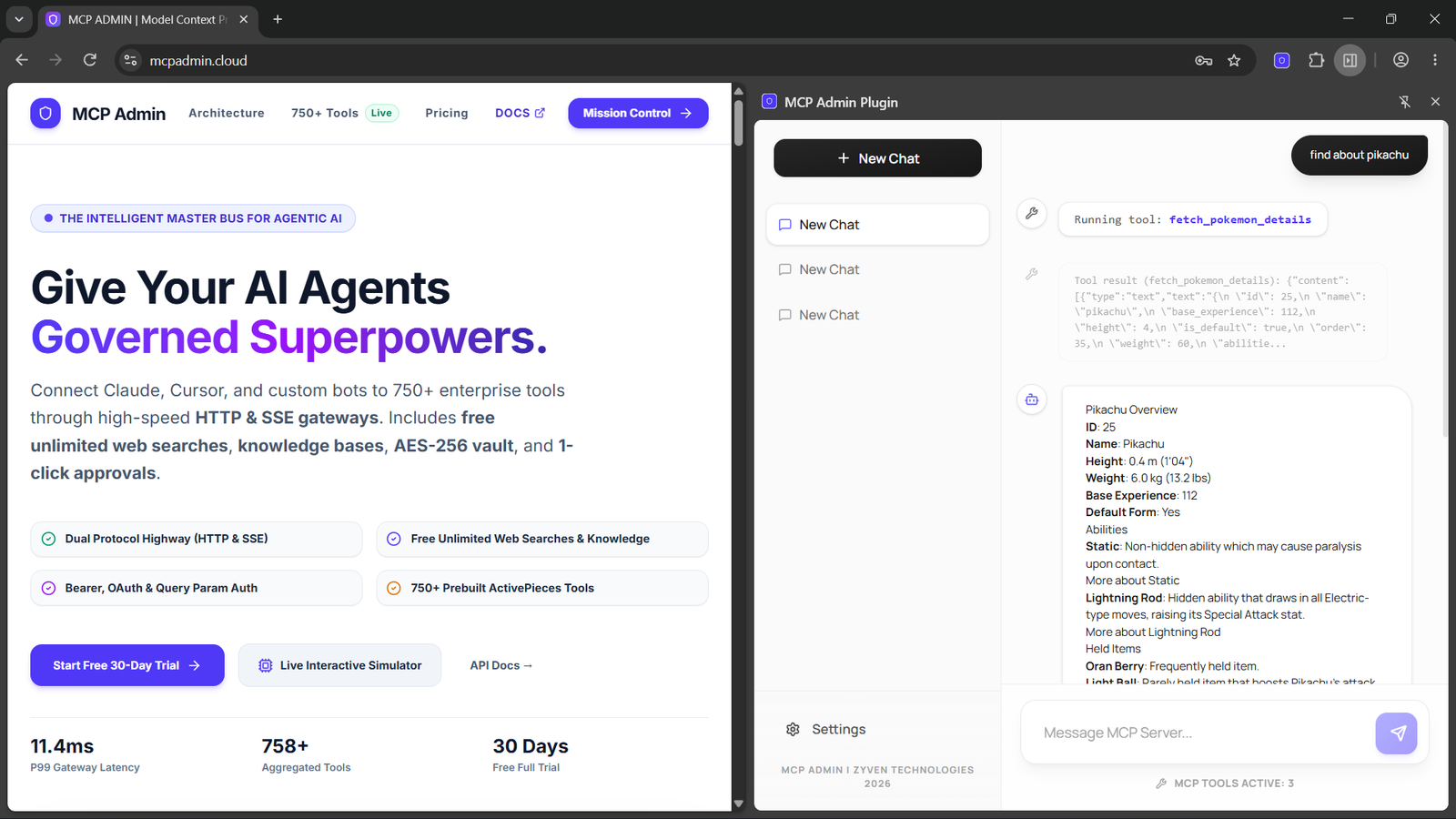
New Update : Launched chrome extension to chat with your MCP servers
Introducing the MCP Admin Chrome Extension: Chat With Your MCP Servers From Your Browser

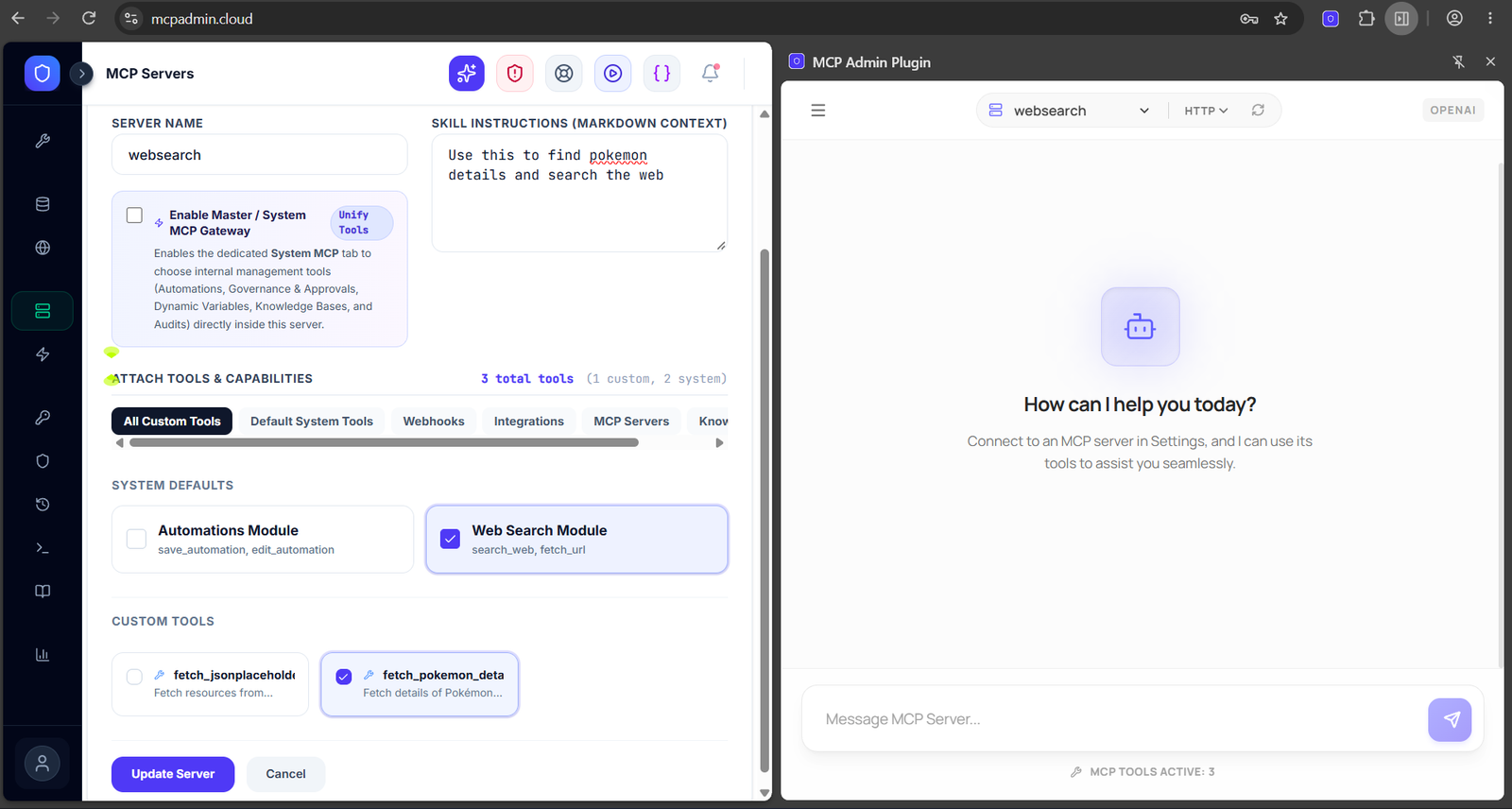
Introducing the MCP Admin Chrome Extension: Chat With Your MCP Servers From the Browser Side Panel
You’ve built MCP servers and tools on MCP Admin. Now you can talk to them directly from Chrome. We’ve launched the MCP Admin Chrome Extension, a side-panel chat client that connects your MCP Admin servers to an LLM of your choice, so the model can call your tools for you.
It takes three steps: enter your MCP Admin API key, connect an LLM, and start chatting.
What it does
The extension connects to the MCP servers you manage on MCP Admin. You type a request in plain language. The LLM reads it, checks which tools the selected server offers, and runs them in the background to get you an answer.
Highlights:
- Side-panel chat that stays open while you browse
- Your MCP Admin servers in one dropdown, refreshable from the Admin API
- Gemini or OpenAI as the model behind the chat
- Saved chat sessions, with a sidebar to switch between threads
- Markdown export of any conversation
- Light and dark themes
Before you start
You’ll need:
- An MCP Admin API key (Bearer token) from mcpadmin.cloud
- At least one deployed MCP server on your account
- An API key for Google Gemini or OpenAI
- Google Chrome
Step 1: Install the extension
The extension isn’t on the Chrome Web Store yet, so you install it manually with Developer Mode. It takes about a minute.
- Open the GitHub repository and download
mcpadmin-extension.zip. - Unzip it into a folder on your computer.
- In Chrome, go to
chrome://extensions/. - Switch on Developer mode in the top-right corner.
- Click Load unpacked and select the unzipped folder.
- Click the puzzle-piece icon next to your profile picture and pin the MCP Admin extension to your toolbar.
Step 2: Enter your MCP Admin API key
The first time you open the extension you’ll see a Setup Required screen.
- Click Open Settings.
- Under MCP Admin Connection, paste your MCP Admin API key.
- Click Test. A green checkmark means you’re connected to your MCP backend.
Step 3: Connect an LLM
Still in Settings, under LLM Configuration:
- Choose the Gemini or OpenAI tab.
- Paste that provider’s API key.
- Click Refresh next to the Model dropdown to load the latest chat models.
- Pick a model. Fast, low-cost options such as
gemini-2.5-flashorgpt-4o-miniwork well for tool-driven chats. - Optionally choose Light or Dark mode.
- Click Save Settings.
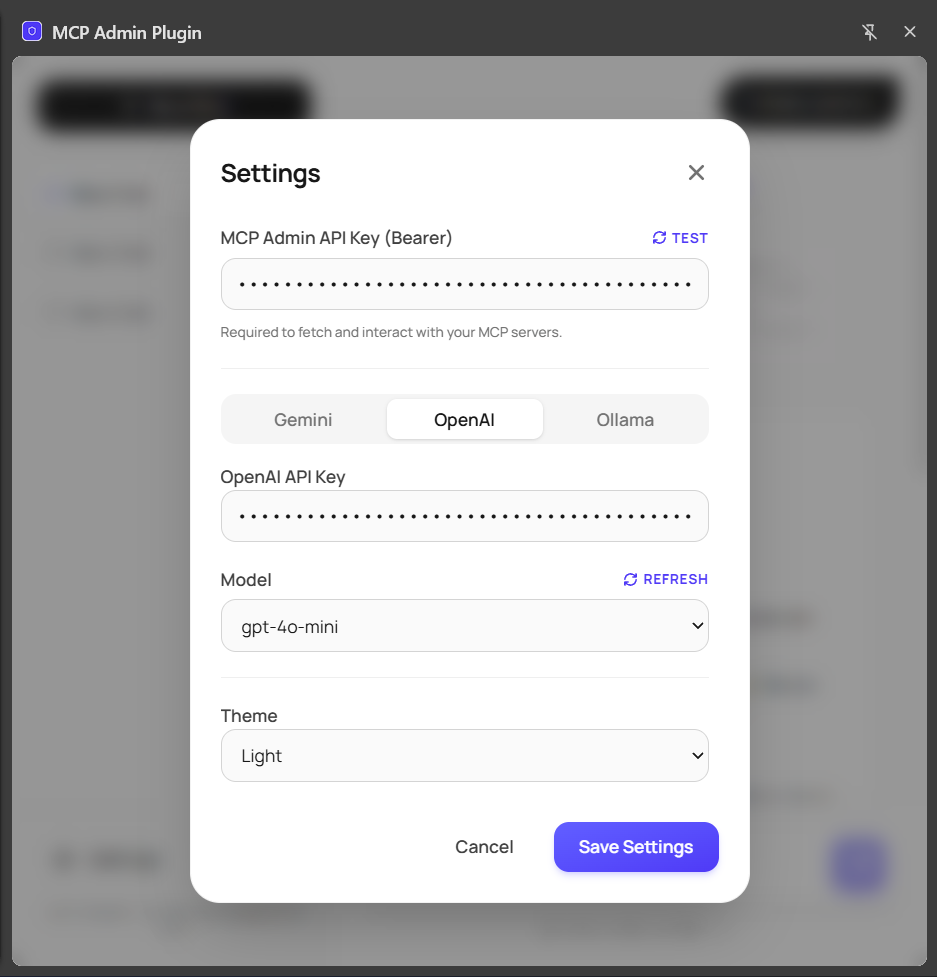
Step 4: Chat with your MCP servers
Once setup is done, the main chat unlocks.
- Select a server from the dropdown at the top. Use the refresh icon to pull your latest server list.
- Check the transport. Make sure the transport type (for example
sse) matches your server. - Type your request. The model will look at the tools on that server, choose the right ones and run them.
Some examples of what to ask:
- “List the tools available on this server.”
- “Classify this message and tell me which team should handle it: ‘My card was charged twice. Please help ASAP.'” (works with the OpenJEV tool from our earlier guide)
- “Create a draft post on my WordPress site about today’s release.”
Managing your chats
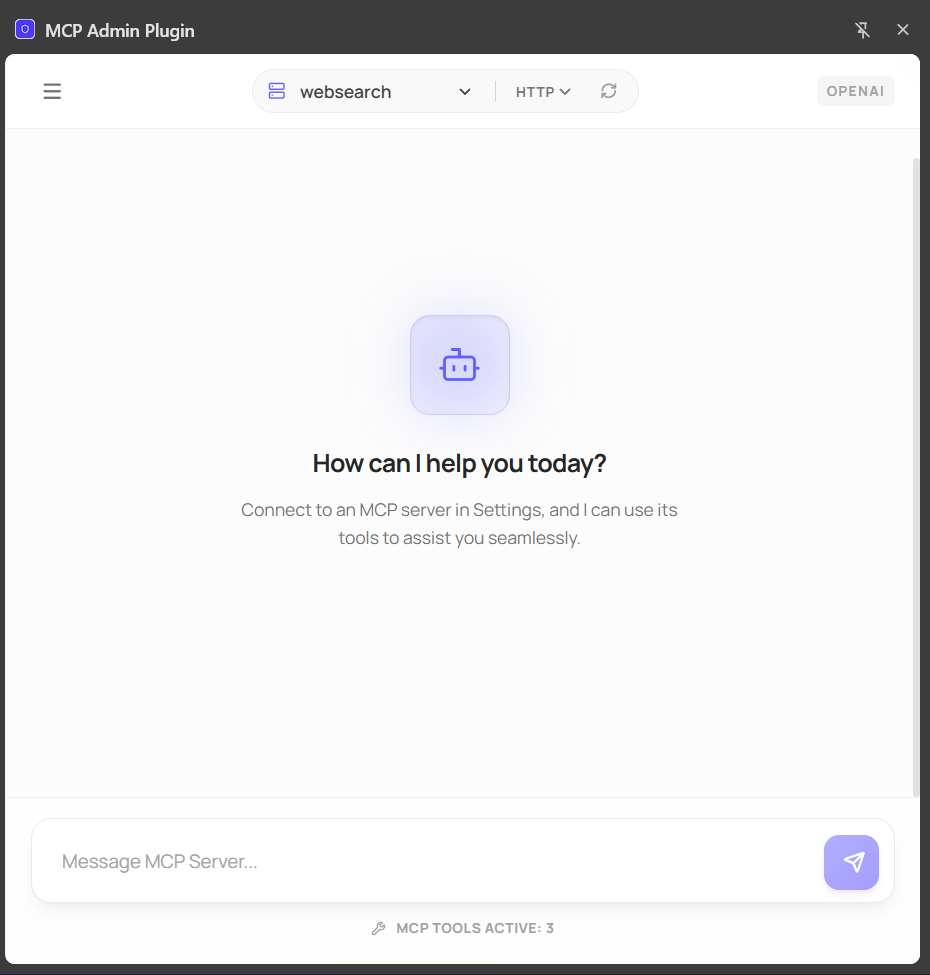
Use the sidebar to start new threads, jump between past conversations, or export a chat log as Markdown. This is handy for documenting a test run or sharing results with your team.
Privacy and security
The extension runs entirely in your browser. It talks directly to the Gemini or OpenAI API and to your MCP Admin API, with no intermediate proxy server. Your API keys are stored in Chrome’s local browser storage on your machine.
A few good habits:
- Treat all your keys like passwords, and don’t share screenshots of the settings page.
- Use separate keys for the extension so you can revoke them independently.
- Regenerate any key you think has been exposed.
Troubleshooting
| Problem | Likely cause | Fix |
|---|---|---|
| “Setup Required” won’t go away | Settings not saved | Complete all fields and click Save Settings |
| MCP Admin Test fails | Wrong or expired key | Copy a fresh key from your dashboard and test again |
| No models in the dropdown | Missing or invalid LLM key | Re-enter the key, then click Refresh |
| Server list is empty | No deployed servers, or list is stale | Deploy a server on MCP Admin, then use the refresh icon |
| Tools aren’t called | Wrong transport, or vague tool descriptions | Match the transport to your server and improve the tool descriptions in MCP Admin |
| Extension missing after restart | Folder moved or deleted | Keep the unzipped folder in a permanent location |
FAQ
Do I need Claude Desktop or another MCP client?
No. The extension is its own chat client, though your MCP Admin servers still work with other clients too.
Which models does it support?
Google Gemini and OpenAI, using your own API key.
Will I be charged for usage?
Model usage is billed by your LLM provider through your own key.
Why isn’t it on the Chrome Web Store?
It’s currently distributed as a packaged extension you load in Developer Mode. The full source is on GitHub.
What’s next
We’re just getting started. We will improve with our core contributors through PRs.
Get started
Download the extension from GitHub, add your keys, and ask your MCP servers your first question. We’d love to hear what you build with it.