Team Management in MCP ADMIN: Control Tools Access & Set Approval Rules for Supervision
Team Management in MCP ADMIN: Control Tools Access & Set Approval Rules for Supervision
As a team head or manager, controlling tool access and implementing approval workflows is crucial for security, compliance, and team productivity. MCP ADMIN provides powerful team management features that allow you to granularly control which tools individual team members can access and define approval rules for sensitive operations. This comprehensive guide walks you through managing teams, assigning tools, and setting up supervision workflows.
Section 1: Understanding Team Management in MCP ADMIN
Why Team Management Matters
Managing tool access at the individual level ensures: Security and compliance by restricting access to sensitive integrations, Productivity by giving team members only the tools they need, Accountability through approval workflows and audit logs, Cost control by monitoring tool usage, Governance to maintain organizational standards.
Key Team Management Features in MCP ADMIN
MCP ADMIN offers three core team management capabilities: (1) User role management (Admin, Manager, Member), (2) Tool-level access control (assign tools to individuals or groups), (3) Approval rules and workflows (require authorization before sensitive operations).
Section 2: Setting Up Your Team in MCP ADMIN
Step 1: Access Team Settings
Log into MCP ADMIN dashboard, click “Team” or “Workspace Settings” in the left sidebar, select “Members” or “Team Management” tab, you’ll see your current team roster with their roles.
Step 2: Understanding User Roles
Admin Role: Full access to all tools, can create and delete tools, can manage team members and roles, can set approval rules, can view all audit logs. Manager Role: Can assign tools to team members, can set approval rules for their team, limited visibility into other managers’ tools, can view audit logs for their team. Member Role: Can only access assigned tools, cannot create tools, cannot manage team members, cannot set approval rules, can view their own usage logs.
Step 3: Invite Team Members
Click “Add Team Member” or “Invite User” button, enter email address of team member, select their role (Admin/Manager/Member), set their initial access level, click “Send Invitation”, team member receives email and accepts invitation to join workspace.
Section 3: Assigning Tools to Individuals
Method 1: Assign During Tool Creation
When creating a new tool in MCP ADMIN: Click “Create New Tool”, configure the tool (name, description, API endpoint, etc.), scroll to “Access Control” section, select “Individual Users” or “Groups”, choose which team members can use this tool, set expiration date if needed (optional), click “Create Tool”.
Method 2: Assign Existing Tools
Click on any tool in your dashboard, select “Manage Access” or “Permissions” tab, click “Add Access” or “Assign User”, search for and select team members, set access level (View Only, Execute, Manage), set expiration date if applicable, click “Save”.
Method 3: Bulk Assignment by Groups
Create user groups: Click “Teams” or “Groups”, select “Create New Group”, name your group (e.g., “Sales Team”, “Engineering”, “Finance”), add members to group, save group. Assign tools to groups: Click on tool, select “Assign to Group”, choose group from dropdown, apply access rules, all current and future group members inherit access.
Section 4: Access Control Levels
Understanding Permission Levels
View Only: User can see the tool exists and view results, but cannot execute or modify. Execute: User can run the tool but cannot modify its configuration. Manage: User can modify tool settings, create versions, and control who else has access. Admin: User has full control including deletion rights.
Best Practice: Principle of Least Privilege
Always assign the minimum access level needed for each role. New team members start with “View Only”, upgrade to “Execute” after training, promote to “Manage” only for experienced members, “Admin” reserved for team leads.
Section 5: Creating Approval Rules for Supervision
What are Approval Rules?
Approval rules require human authorization before certain tools can be executed. This is essential for: Sensitive operations (database changes, payment processing, user deletion), Compliance requirements (financial transactions, healthcare data), Training and oversight (monitoring junior team members), Cost control (preventing accidental expensive API calls).
Step 1: Access Approval Rules
Go to MCP ADMIN dashboard, click “Settings” or “Admin”, select “Approval Rules” or “Security Rules” tab, click “Create New Rule”.
Step 2: Define Approval Rule
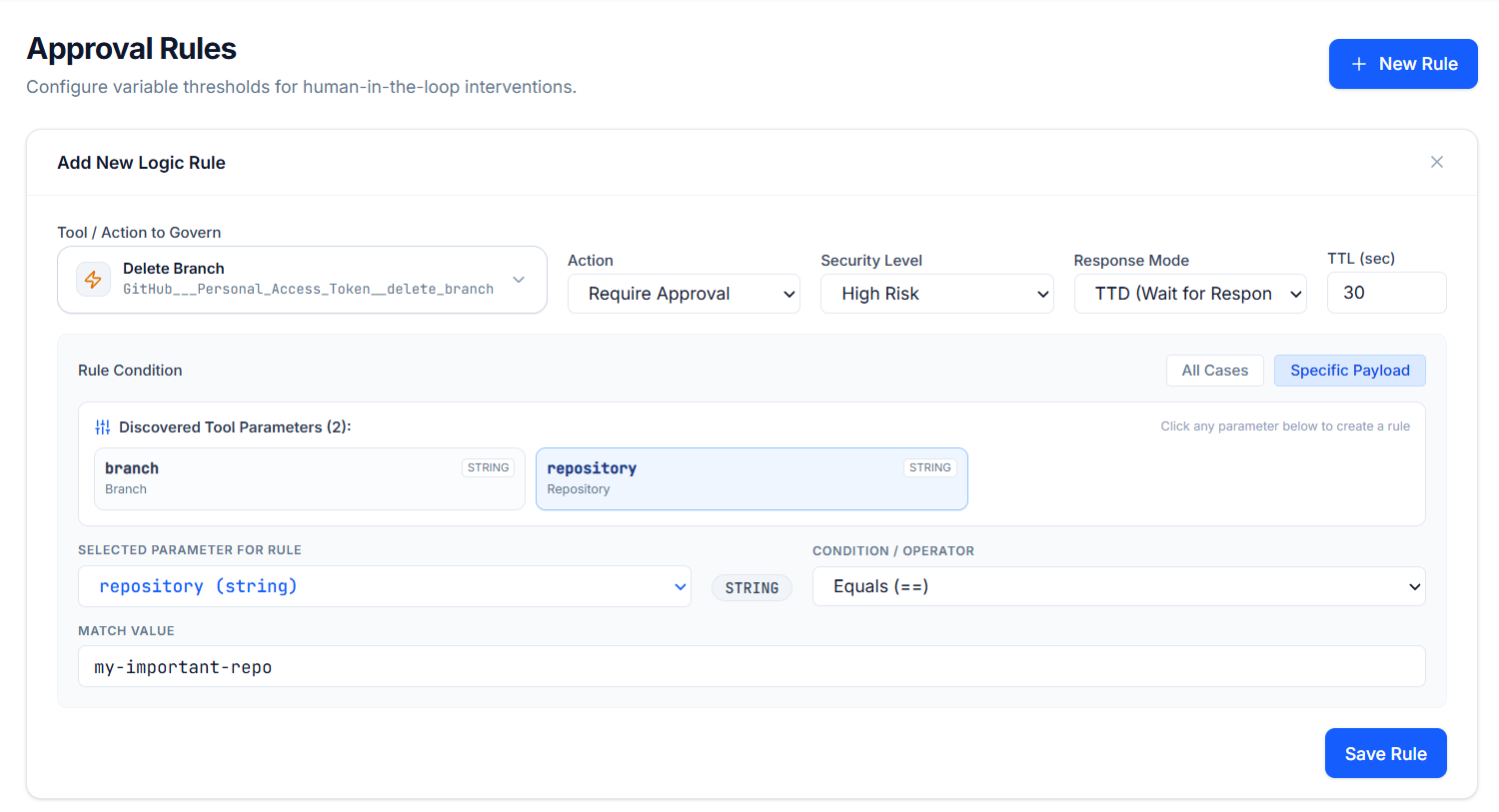
Rule Name: Give your rule a descriptive name (e.g., “Database Modifications Require Approval”). Tool Selection: Select which tool(s) require approval (single tool or multiple). Conditions: Set when approval is needed (always, based on parameters, based on user role). Approval Action: Choose action type (REQUIRE_APPROVAL, TELEGRAM_APPROVAL, AUTO_APPROVE, BLOCK).
Step 3: Configure Approval Workflow
Action: REQUIRE_APPROVAL – User request is suspended, manager receives notification, manager reviews and approves/rejects in dashboard. Action: TELEGRAM_APPROVAL – Sends instant message to manager via Telegram for quick decisions, manager can approve/reject via Telegram bot. Action: AUTO_APPROVE – Automatically approves if conditions are met (e.g., user has been with team 6+ months). Action: BLOCK – Prevents tool execution for specified users/conditions.
Step 4: Set Approval Contacts
For each approval rule, designate approvers: Select “Primary Approver” (usually the team lead), optionally add “Secondary Approver” (manager’s manager for escalation), set approval timeout (how long before request expires if not approved), enable Telegram notifications for faster response.
Section 6: Conditional Approval Rules
Advanced Rule Conditions
MCP ADMIN supports conditional approval logic: User-Based: “Require approval if user role is ‘Member'”, “Require approval if user joined less than 3 months ago”. Parameter-Based: “Require approval if database records affected > 100”, “Require approval if amount > $5,000”, “Require approval if deletion requested”. Time-Based: “Require approval if executed outside business hours”, “Require approval if request time is Friday evening”.
Example Approval Rules Setup
Rule 1 – Junior Team Member Oversight: Tool: All Database Tools | Condition: User role = “Member” | Action: REQUIRE_APPROVAL | Approver: Team Lead. Rule 2 – High-Value Transactions: Tool: Payment Processing | Condition: amount > $10,000 | Action: TELEGRAM_APPROVAL | Approver: Finance Manager. Rule 3 – Bulk Data Operations: Tool: Data Export | Condition: records > 1,000 | Action: REQUIRE_APPROVAL | Approver: Data Compliance Officer.
Section 7: Supervision Workflows & Monitoring
Approval Dashboard for Managers
Managers can view: Pending approvals with user information, tool being executed, execution parameters, timestamp of request, ability to approve/reject with optional comments, bulk approval for multiple requests.
Audit Logs & Monitoring
MCP ADMIN maintains detailed audit logs showing: Who executed which tool, When it was executed, What parameters were used, Whether it required approval and who approved it, Result of the execution, Any errors or warnings. Access logs: Click “Team” → “Audit Logs” or “Activity”, filter by user, tool, date range, download logs for compliance reporting.
Real-Time Notifications
Set up notifications for: Tool execution by specific users, Approval requests awaiting action, Failed tool executions, Unusual activity patterns, Policy violations. Configure notification channels: Email, Slack, Telegram, In-app notifications.
Section 8: Real-World Team Management Scenarios
Scenario 1: Onboarding a New Junior Developer
Day 1: Add to team as “Member” role, assign “View Only” access to all tools, they can observe existing workflows. Week 2: Upgrade to “Execute” access to non-critical tools (logging, monitoring, analytics), require approval from senior dev. Month 2: Grant “Execute” access to more tools, remove approval requirement for routine operations. Month 3: Promote to “Manage” for their primary tools if performance is strong.
Scenario 2: Managing Finance Team Access
Create “Finance Group” with Accountant, Controller, Finance Manager, Assign Payment Processing tool with auto-tiered approval: Transactions < $5K: Auto-approve, Transactions $5K-$50K: Require Accountant approval, Transactions > $50K: Require Controller approval. Set audit logging to “High” for compliance, Generate monthly audit reports for external auditors.
Scenario 3: Customer Data Protection
Create rule: “Customer Data Export tool”, Condition: “Export > 100 records”, Action: “TELEGRAM_APPROVAL”, Approver: “Privacy Officer”, All customer data exports over 100 records require immediate approval via Telegram, Privacy Officer can approve/reject within seconds, audit trail maintained for GDPR compliance.
Section 9: Best Practices for Team Management
Access Control Best Practices
1. Principle of Least Privilege: Start restrictive, expand access based on performance and need. 2. Role-Based Groups: Organize by function (Sales, Engineering, Finance) not individuals. 3. Regular Audits: Review access monthly, remove unused access, update for job changes. 4. Separation of Duties: Critical operations require multiple approvals. 5. Offboarding Process: Immediately revoke access when employees leave. 6. Documentation: Keep record of why access was granted to whom.
Approval Rule Best Practices
1. Clear Conditions: Write unambiguous rules (amount > $5K, not “large amounts”). 2. Reasonable Timeouts: Set approval deadlines (24-48 hours typically). 3. Multiple Approvers for Critical: High-risk operations need 2+ approvals. 4. Escalation Paths: Define who approves if primary approver unavailable. 5. Regular Review: Audit rules quarterly, remove outdated rules. 6. Training: Ensure approvers understand the rules and tools.
Communication Best Practices
1. Clear Documentation: Document access policies and approval rules for team. 2. Training: Train new members on tool access expectations. 3. Notifications: Set up proactive alerts for violations or unusual activity. 4. Feedback: Review approval metrics monthly, adjust if approvals bottleneck work. 5. Transparency: Communicate changes to access policies in advance.
Section 10: Troubleshooting Team Management Issues
Q: Team member can’t see assigned tool – Verify tool is published (not in draft), check access hasn’t expired, confirm user accepted team invitation, clear browser cache. Q: Approvals are slowing down work – Review rule conditions, tighten conditions (increase thresholds), add secondary approvers to parallel process, implement AUTO_APPROVE for low-risk operations. Q: Audit logs are growing too large – Archive old logs (download for compliance), enable log retention policies, reduce logging verbosity for routine operations. Q: Can’t remove someone’s access – Check if they’re the only admin (promote someone else first), verify you have Manager or Admin role, look for inherited group permissions.
Conclusion
MCP ADMIN’s team management features empower leaders to maintain security, compliance, and productivity while enabling team growth. By thoughtfully assigning tool access and implementing smart approval rules, you create an environment where team members have the tools they need while maintaining organizational control. Start with restrictive policies, monitor team performance, and gradually expand access based on demonstrated competence and need.
Next Steps for Team Heads
- Set up your team in MCP ADMIN: Go to Settings → Team Management
- Invite team members with appropriate roles
- Assign tools based on job function
- Create approval rules for sensitive operations
- Establish audit and monitoring practices
- Review and adjust monthly
Need More Help? Visit MCP ADMIN documentation for team management setup guides, contact support for complex approval rule scenarios, join MCP ADMIN community forums to learn from other team leads.
Created: September 7, 2026
Author: Aayush Pandey
Organization: Zyven Technologies Pvt Ltd