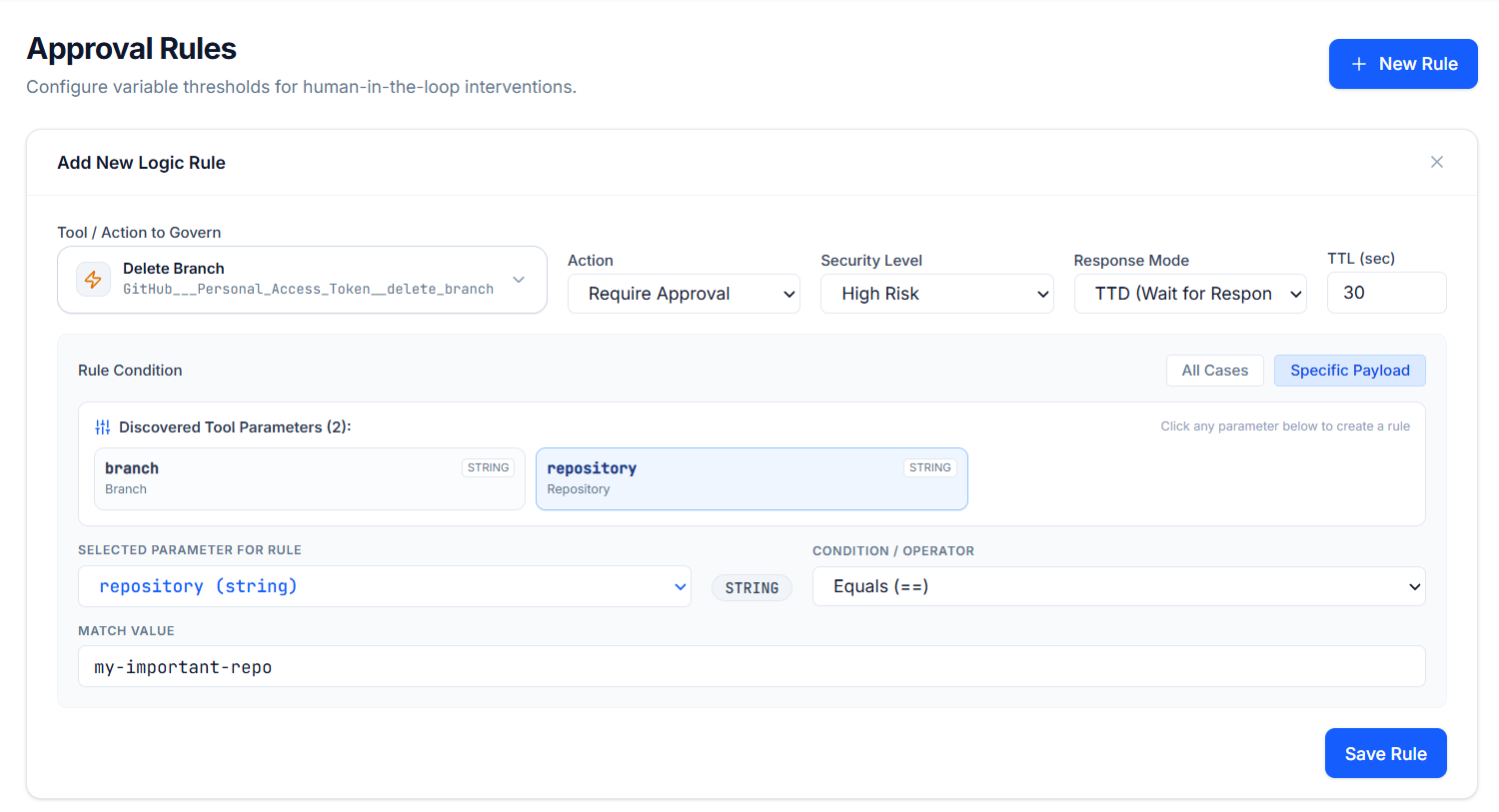
Configure Variable Thresholds for Human-in-the-Loop Interventions: MCP ADMIN Approval Rules for AI Agents
Configure Variable Thresholds for Human-in-the-Loop Interventions: Complete Guide to MCP ADMIN Approval Rules for AI Agents
The Problem with Fully Autonomous AI: Give an AI agent full control, and it might approve a $50,000 transaction without verification. Let it edit your database without review, and you might lose critical data.
The Answer: Approval Rules with Variable Thresholds. Define exactly when AI needs human sign-off, when it can auto-approve, and when to escalate to Telegram. All based on dynamic conditions you set.
This comprehensive guide shows you how to master MCP ADMIN’s approval rules system to build AI agents that are powerful AND secure.
What Are Approval Rules? (And Why They Matter)
Definition: The Security Layer Between AI and Action
An approval rule is a conditional security gate that sits between an AI agent’s decision and its execution. Instead of letting AI act autonomously, approval rules ask: “Should this action proceed? Does it need human review?”
Without approval rules: AI executes every decision immediately
With approval rules: AI makes decisions, rules evaluate them, humans verify if needed, then execution happens
Why Variable Thresholds?
The key insight: Not all actions have equal risk.
- Sending a $50 email? Auto-approve it.
- Approving a $50,000 contract? Require human review.
- Deleting customer records? Block it completely.
- Making an urgent support decision? Escalate to Telegram instantly.
Variable thresholds let you set rules that adapt based on the action’s risk level. Different conditions trigger different approval actions.
The Enterprise Challenge This Solves
Imagine you have 50 AI agents across your organization:
- Sales agents making CRM updates
- Support agents sending automated responses
- Finance agents approving purchase orders
- HR agents updating employee records
Without approval rules: You trust them completely or not at all. You either:
- Option A: Give them full autonomy (risky)
- Option B: Require manual approval for everything (slow, defeats purpose of AI)
With variable threshold approval rules: You automate safely. Each rule is specific to its risk profile.
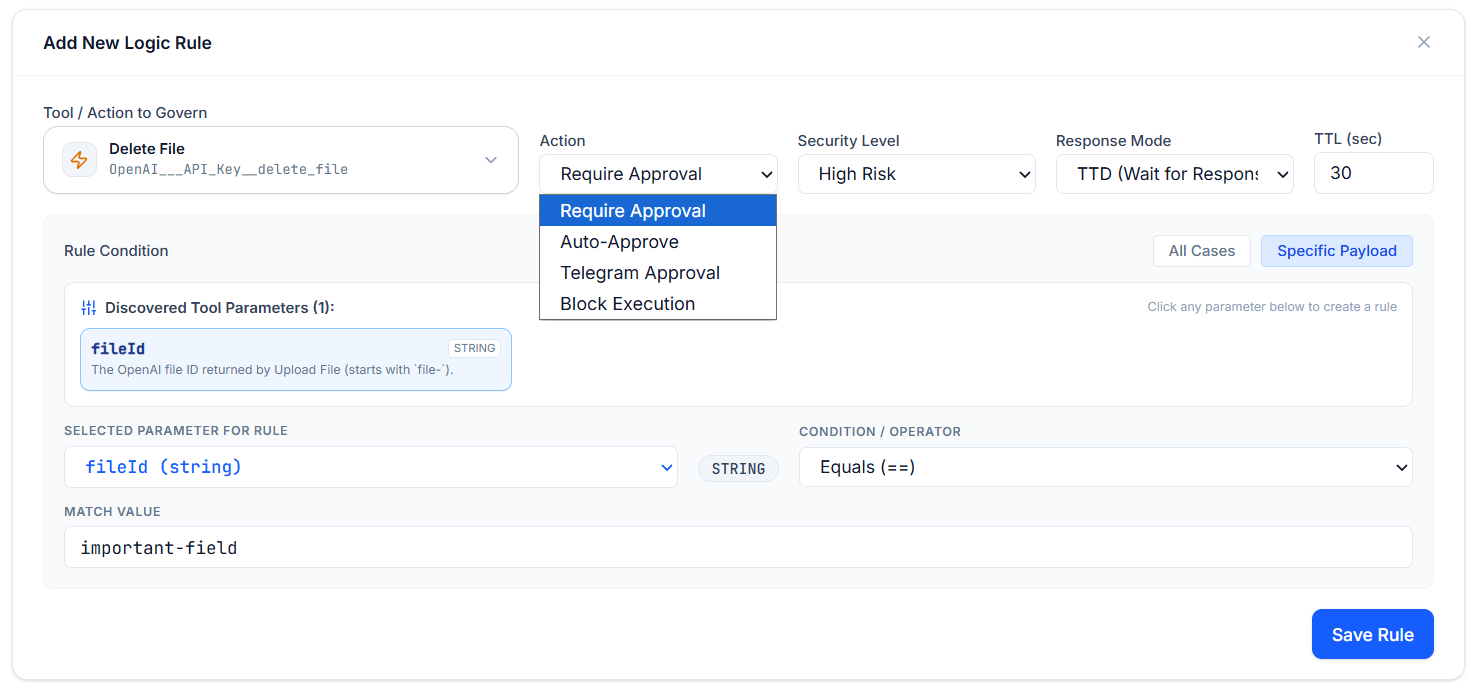
The Four Approval Actions Explained
1. REQUIRE_APPROVAL: “Get Human Approval”
What it does: Pauses AI execution and waits for human approval before proceeding.
When to use: High-risk actions that need human judgment
Examples:
// Require approval for contracts over $10,000
{
  toolName: "create_contract",
  condition: "amount > 10000",
  action: "REQUIRE_APPROVAL"
}

// Require approval for deleting customer records
{
  toolName: "delete_customer",
  action: "REQUIRE_APPROVAL"
}

// Require approval for updating pricing
{
  toolName: "update_product_price",
  condition: "price_change > 20%",
  action: "REQUIRE_APPROVAL"
}
Workflow:
AI Agent Decision → REQUIRE_APPROVAL Rule → Task Paused
→ Human Receives Notification → Human Reviews → Human Approves/Rejects
→ Task Continues/Cancels
2. AUTO_APPROVE: “Let It Run”
What it does: Automatically approves the action without human review.
When to use: Low-risk, high-volume actions that you trust completely
Examples:
// Auto-approve emails under 500 words
{
  toolName: "send_email",
  condition: "email_length < 500",
  action: "AUTO_APPROVE"
}

// Auto-approve support responses
{
  toolName: "send_support_reply",
  action: "AUTO_APPROVE"
}

// Auto-approve status updates under $100 impact
{
  toolName: "update_project_status",
  condition: "budget_impact < 100",
  action: "AUTO_APPROVE"
}
Benefit: Removes friction. Actions execute instantly with no human delay.
3. BLOCK: “Never Allow This”
What it does: Rejects the action completely. AI cannot execute it under any circumstances.
When to use: Dangerous operations you never want AI to attempt
Examples:
// Never allow deleting critical systems
{
  toolName: "delete_system_settings",
  action: "BLOCK"
}

// Never allow emergency password resets
{
  toolName: "force_password_reset_admin",
  action: "BLOCK"
}

// Never allow access to financial audit logs
{
  toolName: "read_audit_logs",
  condition: "log_type == 'financial'",
  action: "BLOCK"
}
Benefit: Hard security guardrails. Some things AI should never touch.
4. TELEGRAM_APPROVAL: “Alert Me Instantly”
What it does: Sends instant Telegram notification to a specified person/group for urgent approval.
When to use: Time-sensitive decisions requiring immediate human attention
Examples:
// Telegram alert for large transactions
{
  toolName: "process_payment",
  condition: "amount > 50000",
  action: "TELEGRAM_APPROVAL",
  telegramPhone: "@cfo_alerts"
}

// Telegram alert for security incidents
{
  toolName: "handle_security_breach",
  action: "TELEGRAM_APPROVAL",
  telegramPhone: "+1-555-security-team"
}

// Telegram alert for critical system changes
{
  toolName: "update_production_database",
  action: "TELEGRAM_APPROVAL",
  telegramPhone: "@devops-oncall"
}
Workflow:
AI Agent Decision → TELEGRAM_APPROVAL Rule → Instant Telegram Message Sent
→ Person Gets Mobile Notification → Approves from Phone → Task Continues
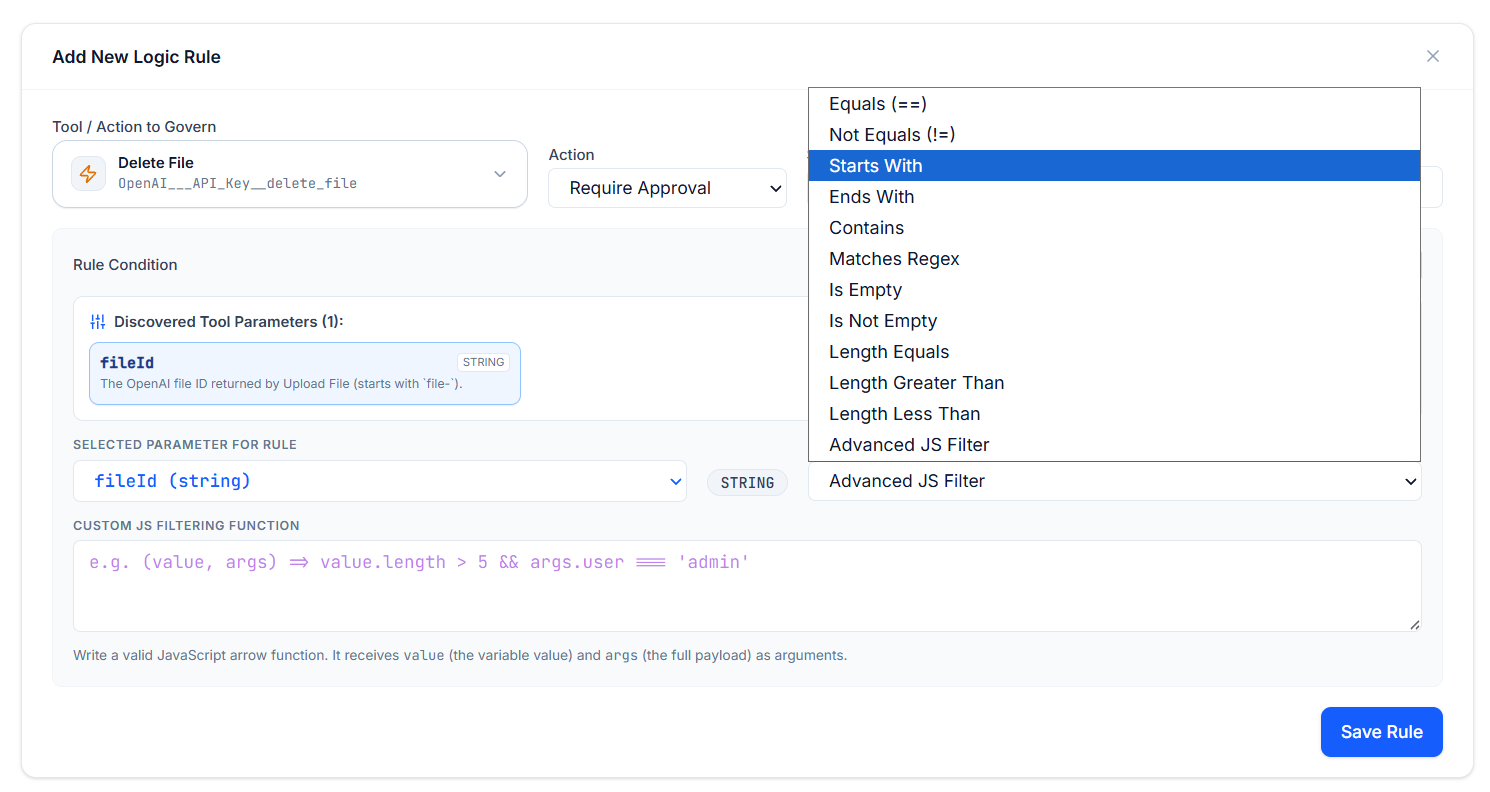
Understanding Condition Expressions
What Are Conditions?
Conditions are dynamic logical expressions that determine whether a rule applies to a specific action.
Without conditions: Rule applies to ALL actions for that tool
With conditions: Rule applies ONLY when the condition is true
Common Condition Examples
Simple Comparisons
// Numeric comparisons
condition: "amount > 1000"
condition: "duration < 24"
condition: "priority == 'critical'"

// String checks
condition: "status == 'approved'"
condition: "user_role == 'admin'"
condition: "action_type != 'read'"
Complex Conditions (Combining Multiple Rules)
// AND conditions (all must be true)
condition: "amount > 1000 AND user_role == 'agent'"

// OR conditions (at least one must be true)
condition: "amount > 100000 OR data_type == 'customer_ssn'"

// Nested conditions
condition: "(amount > 5000 AND region == 'us') OR (amount > 2000 AND region == 'intl')"
Pattern Matching
// String patterns
condition: "email_domain.endsWith('@company.com')"
condition: "customer_type.includes('enterprise')"

// Date/time conditions
condition: "timestamp > '2024-01-01'"
condition: "is_business_hours == true"
The “always” Condition
When you want a rule to apply to ALL actions (no condition):
{
  toolName: "delete_customer",
  condition: "always",
  action: "REQUIRE_APPROVAL"
}
Building Approval Rules: Step-by-Step
Phase 1: Identify High-Risk Actions (1 hour)
Step 1.1: List All Your Tools
What tools will your AI agents use?
- CRM operations (create/update/delete customer)
- Payment processing (approve payment, refund)
- Database operations (insert, update, delete)
- Communication (send email, post to social)
- System access (access logs, modify settings)
Step 1.2: Rate Risk Levels
For each tool, ask: “How bad would it be if this tool failed or acted incorrectly?”
| Risk Level | Examples | Impact |
|---|---|---|
| Critical | Delete customer, Process refund >$10k, Modify database | Financial loss, data loss, compliance violation |
| High | Send to customer, Approve discount >20%, Update pricing | Customer frustration, revenue loss, brand damage |
| Medium | Send internal email, Update project status, Log events | Internal confusion, minor delays, workflow impact |
| Low | Read data, Send automation alert, Fetch info | Minimal, informational only |
Step 1.3: Create a Rules Matrix
Map each tool to its approval action:
| Tool | Risk | Approval Action | Condition |
|---|---|---|---|
| send_email | Medium | AUTO_APPROVE | length < 1000 |
| send_email | High | REQUIRE_APPROVAL | to.includes(‘@critical’) |
| process_refund | High | REQUIRE_APPROVAL | amount > 1000 |
| process_refund | Critical | TELEGRAM_APPROVAL | amount > 50000 |
| delete_customer | Critical | BLOCK | always |
Phase 2: Create Approval Rules in MCP ADMIN (30 minutes)
Step 2.1: Define Your First Rule
Goal: Require approval for refunds over $1,000
// Create approval rule
{
  toolName: "process_refund",
  condition: "amount > 1000",
  action: "REQUIRE_APPROVAL"
}
Step 2.2: Add Variable Threshold for Larger Amounts
Goal: Escalate to Telegram for refunds over $50,000
// Create second rule for larger refunds
{
  toolName: "process_refund",
  condition: "amount > 50000",
  action: "TELEGRAM_APPROVAL",
  telegramPhone: "@finance-alerts"
}
Step 2.3: Add Auto-Approve for Small Amounts
Goal: Auto-approve refunds under $100
// Auto-approve small refunds
{
  toolName: "process_refund",
  condition: "amount < 100",
  action: "AUTO_APPROVE"
}
Result: Your refund rule now works like this:
Refund < $100 → AUTO_APPROVE (instant)
Refund $100-$50,000 → REQUIRE_APPROVAL (waits for human)
Refund > $50,000 → TELEGRAM_APPROVAL (urgent mobile alert)
Phase 3: Test Your Rules (1-2 hours)
Step 3.1: Test Auto-Approve Path
Trigger action that should auto-approve. Verify it executes immediately without waiting.
Step 3.2: Test Require-Approval Path
Trigger action that requires approval. Verify it pauses and waits for your decision.
Step 3.3: Test Telegram Path
Trigger action that needs Telegram approval. Verify you get instant mobile notification.
Step 3.4: Review Audit Logs
Check the audit log to see exactly what happened:
- When the rule was triggered
- What condition evaluated to true
- What action was taken
- Whether it was approved/rejected
Phase 4: Optimize Based on Real Usage (Ongoing)
Step 4.1: Monitor Approval Rate
Are you approving/rejecting rules frequently? If 99% are approved, the threshold might be too strict.
Step 4.2: Adjust Thresholds
Based on 1-2 weeks of data:
- Raise auto-approve threshold if rule is working well
- Lower require-approval threshold if too many slip through
- Add new conditions based on discovered patterns
Step 4.3: Add New Rules
As you discover new risks, add approval rules for them.
Real-World Examples: Complete Scenarios
Scenario 1: E-Commerce Refund Processing
Goal: Let AI approve small refunds, get human approval for medium ones, urgent alert for large ones
// Rule 1: Auto-approve small refunds
{
  toolName: "process_refund",
  condition: "amount < 50 AND reason == 'wrong_item'",
  action: "AUTO_APPROVE"
}

// Rule 2: Require approval for medium refunds
{
  toolName: "process_refund",
  condition: "amount >= 50 AND amount < 500",
  action: "REQUIRE_APPROVAL"
}

// Rule 3: Telegram alert for large refunds
{
  toolName: "process_refund",
  condition: "amount >= 500 AND amount < 10000",
  action: "TELEGRAM_APPROVAL",
  telegramPhone: "@refund-team"
}

// Rule 4: Block emergency refunds (need manual investigation)
{
  toolName: "process_refund",
  condition: "amount >= 10000 OR reason == 'fraud_investigation'",
  action: "BLOCK"
}
Result: Your AI agent can now:
– Process $30 refund instantly ✅
– Hold $200 refund for approval ⏳
– Alert team to $2,000 refund 🔔
– Cannot force $50,000 refund ❌
Scenario 2: Content Publishing Automation
Goal: Auto-publish internal updates, require approval for customer-facing content, block sensitive topics
// Rule 1: Auto-publish internal updates
{
  toolName: "publish_article",
  condition: "audience == 'internal' AND sensitivity == 'low'",
  action: "AUTO_APPROVE"
}

// Rule 2: Require approval for customer content
{
  toolName: "publish_article",
  condition: "audience == 'public'",
  action: "REQUIRE_APPROVAL"
}

// Rule 3: Block posts about sensitive topics
{
  toolName: "publish_article",
  condition: "topic.includes('security_breach') OR topic.includes('layoff')",
  action: "BLOCK"
}

// Rule 4: Telegram alert for high-reach posts
{
  toolName: "publish_article",
  condition: "estimated_reach > 100000",
  action: "TELEGRAM_APPROVAL",
  telegramPhone: "@social-media-lead"
}
Scenario 3: Customer Support Automation
Goal: Auto-respond to common questions, require approval for account changes, alert for escalations
// Rule 1: Auto-respond to FAQ questions
{
  toolName: "send_support_reply",
  condition: "query_type == 'faq' AND confidence > 0.95",
  action: "AUTO_APPROVE"
}

// Rule 2: Require approval for account changes
{
  toolName: "modify_account_settings",
  condition: "always",
  action: "REQUIRE_APPROVAL"
}

// Rule 3: Telegram alert for angry customers
{
  toolName: "send_support_reply",
  condition: "sentiment == 'very_negative' OR urgency == 'critical'",
  action: "TELEGRAM_APPROVAL",
  telegramPhone: "@support-lead"
}

// Rule 4: Block refund offers over $5000
{
  toolName: "offer_refund",
  condition: "amount > 5000",
  action: "BLOCK"
}
Managing Approvals: The Full Workflow
When an Action Needs REQUIRE_APPROVAL
Step 1: AI Makes Decision
User asks: "Approve this $5,000 refund"
AI decides: "Yes, this is a valid refund"
Refund rule triggers: REQUIRE_APPROVAL (amount > 1000)
Step 2: Task Pauses & Waits
Action is saved but not executed
Status: "PENDING_APPROVAL"
Created: 2026-08-28 10:30 AM
Step 3: You Get Notified
Notification received: "Refund of $5,000 pending your approval"
You can review details, see why AI approved it, check customer history
Step 4: You Approve or Reject
You approve → Action executes immediately
You reject → Action is cancelled, AI is notified of rejection
Step 5: Full Audit Trail Created
Log entry:
- Task ID: task_abc123
- Action: process_refund
- Amount: $5,000
- Requested by: AI Agent (Sales)
- Required approval: Yes (rule: amount > 1000)
- Approved by: You
- Approved at: 2026-08-28 10:31 AM
- Executed: Yes
- Execution time: 0.2s
When an Action Triggers TELEGRAM_APPROVAL
Step 1: AI Makes High-Risk Decision
AI detects: Large refund request ($75,000)
Rule triggers: TELEGRAM_APPROVAL → @finance-alerts
Step 2: Instant Telegram Message Sent
🚨 URGENT APPROVAL NEEDED
Refund of $75,000 requested
Customer: Acme Corp
Reason: Bulk order discount adjustment
Approve now → tap link
Reject → tap link
Details → view in dashboard
Step 3: Approver Gets Mobile Notification
Even if you're not at your desk, you get instant notification on your phone
Step 4: One-Tap Approval from Telegram
You tap "Approve" in Telegram
Action executes immediately
Confirmation sent back: ✅ Approved
Monitoring All Approvals
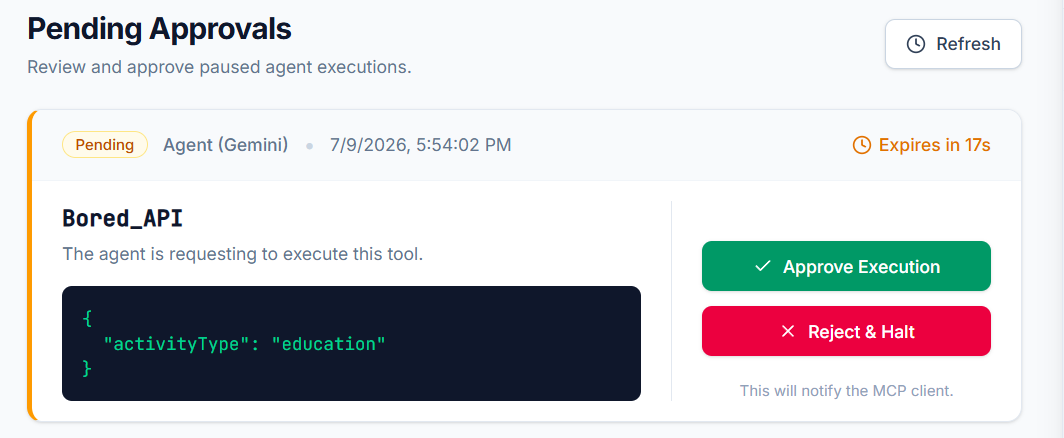
View All Pending Approvals:
Dashboard shows:
- Task ID: task_xyz789
- Tool: send_email
- Condition: to.includes('@executive')
- Created: 5 minutes ago
- Status: Waiting for approval
- Action: Approve / Reject
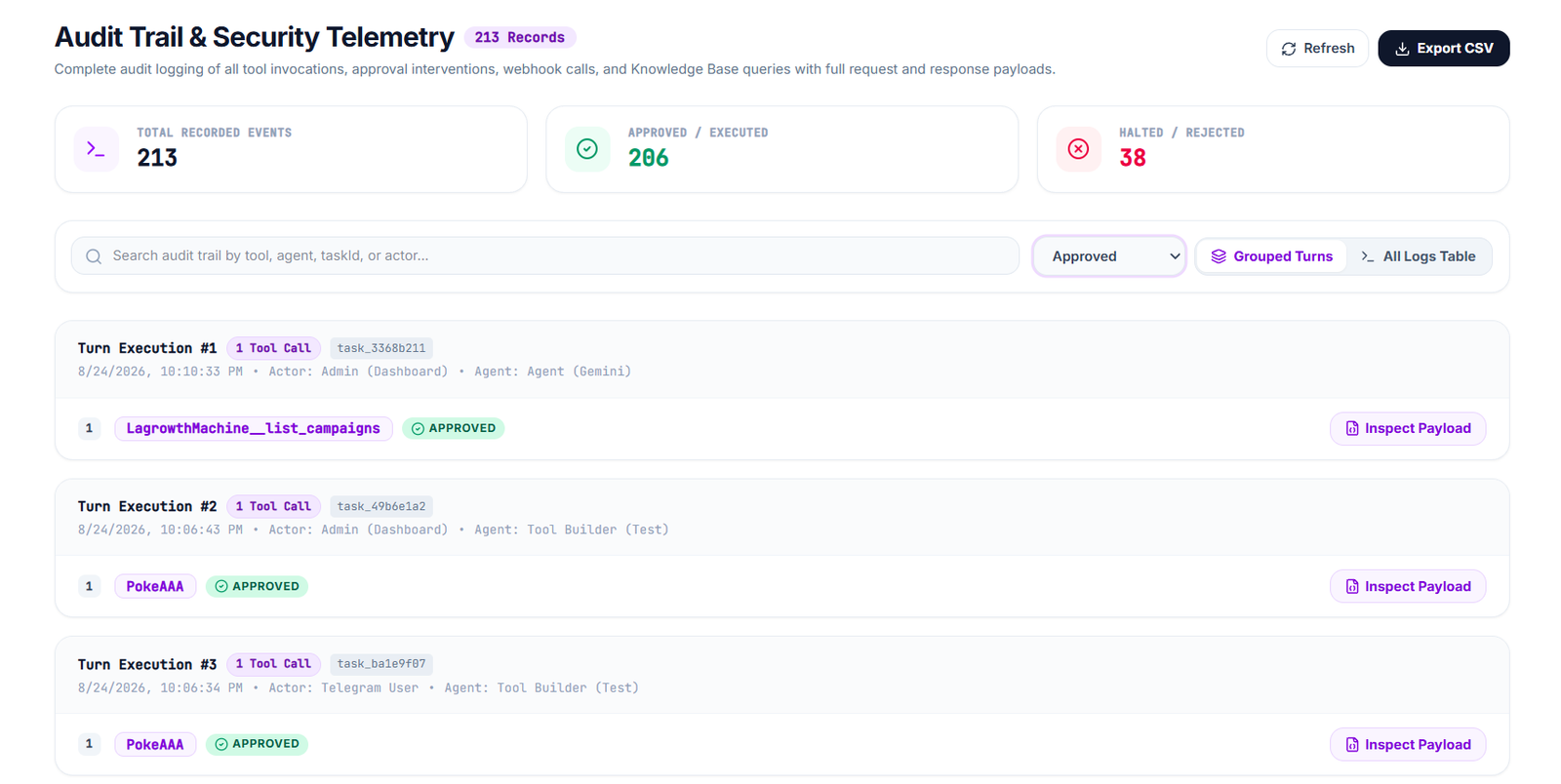
View Audit Logs:
Complete history of all rule triggers:
- 142 auto-approvals (0 rejections)
- 23 required-approvals (20 approved, 3 rejected)
- 8 Telegram alerts (7 approved, 1 rejected)
- 5 blocks (never executed)
- Avg approval time: 8 minutes
Best Practices for Approval Rules
1. Start Conservative, Then Optimize
Don’t do this: Auto-approve everything and hope it works
Do this:
– Week 1: Require approval for most actions
– Week 2: Review approvals, identify patterns
– Week 3: Gradually increase auto-approve threshold
– Ongoing: Fine-tune based on rejection rates
2. Use Layered Thresholds
Good: One rule per tool
Better: Multiple rules with progressive thresholds
// Layered approach
Rule 1: amount < 100 → AUTO_APPROVE
Rule 2: amount 100-1000 → REQUIRE_APPROVAL
Rule 3: amount 1000-10000 → REQUIRE_APPROVAL + TELEGRAM_APPROVAL
Rule 4: amount > 10000 → BLOCK
3. Combine Conditions Wisely
Don’t do this: Single condition for everything
Do this: Combine multiple conditions
// Smart conditions
condition: "amount > 1000 AND user_is_new == true"
condition: "deleted_records > 100 OR involves_financial_data == true"
condition: "data_classification == 'confidential' OR is_customer_pii == true"
4. Monitor Rejection Rates
Track what percentage of approvals you reject. If >10%, your threshold might be too loose.
5. Escalate High-Risk Patterns
If same action is rejected multiple times, escalate or block it:
// If refund rejected 3 times, block future attempts
{
  toolName: "process_refund",
  condition: "rejection_count > 3",
  action: "BLOCK"
}
6. Time-Based Conditions
Be more strict during off-hours or weekends:
// Stricter rules after business hours
{
  toolName: "process_payment",
  condition: "amount > 5000 AND hour > 18",
  action: "TELEGRAM_APPROVAL",
  telegramPhone: "@emergency-approver"
}
7. Role-Based Approval Routing
Different Telegram users for different risk levels:
// Medium risk → normal team
{
  condition: "amount > 1000 AND amount < 10000",
  action: "TELEGRAM_APPROVAL",
  telegramPhone: "@finance-team"
}

// High risk → director only
{
  condition: "amount > 50000",
  action: "TELEGRAM_APPROVAL",
  telegramPhone: "@finance-director"
}
Troubleshooting Common Issues
Issue #1: “Actions are Being Blocked When They Shouldn’t”
Problem: Your BLOCK rule is too broad
Solution: Add a more specific condition
// ❌ Too broad - blocks everything
{
  toolName: "update_database",
  action: "BLOCK"
}

// ✅ More specific - blocks only sensitive tables
{
  toolName: "update_database",
  condition: "table_name == 'customers' OR table_name == 'financial'",
  action: "BLOCK"
}
Issue #2: “Too Many Manual Approvals”
Problem: You’re approving 90% of actions – threshold too strict
Solution: Increase auto-approve threshold
// ❌ Too strict
{
  condition: "amount > 50",
  action: "REQUIRE_APPROVAL"
}

// ✅ More reasonable
{
  condition: "amount > 500",
  action: "REQUIRE_APPROVAL"
}
Issue #3: “Not Getting Telegram Alerts”
Problem: Telegram number/username incorrect
Solution: Verify exact format:
// Correct formats:
telegramPhone: "@username"              // Handle
telegramPhone: "+1-555-123-4567"        // Phone
telegramPhone: "123456789"              // Chat ID
Issue #4: “Conditions Not Working”
Problem: Complex condition syntax error
Solution: Test condition syntax
// ✅ Correct
condition: "amount > 1000 AND user_role == 'agent'"

// ❌ Wrong - missing quotes
condition: "amount > 1000 AND user_role == agent"

// ❌ Wrong - bad operator
condition: "amount => 1000"  // Should be >

// ✅ Correct
condition: "status == 'approved' AND date > '2026-01-01'"
Measuring Success: Key Metrics
Track These Metrics
| Metric | Target | What It Means |
|---|---|---|
| Auto-approve rate | 60-80% | % of actions that auto-approve (good automation) |
| Approval rate | 95%+ | % of manual approvals that you approve (good thresholds) |
| Telegram response time | <2 min | How fast you respond to urgent alerts |
| Block rate | <5% | % of actions that are blocked (should be rare) |
| Avg approval latency | <5 min | How long before you approve waiting actions |
Dashboard
Your Approval Rules Dashboard Today:
- Actions processed: 1,247
- Auto-approved: 945 (76%)
- Manual approvals: 289 (23%)
  - You approved: 275 (95%)
  - You rejected: 14 (5%)
- Telegram alerts: 13
  - Responded: 12 (avg 3 min)
  - Pending: 1
- Blocks: 8 (security holds)

Weekly Trend: 2% fewer manual approvals (thresholds optimizing well)
Advanced: Dynamic Variables in Conditions
Use dynamic variables to change thresholds without creating new rules:
// Set a variable for approval amount
Variable: REFUND_THRESHOLD = 1000

// Then use in condition
{
  toolName: "process_refund",
  condition: "amount > $REFUND_THRESHOLD",
  action: "REQUIRE_APPROVAL"
}

// Change variable once, applies to all rules using it
Update REFUND_THRESHOLD to 2000 → all rules update instantly
Security Best Practices
1. Principle of Least Privilege
Give approval rights only to people who need them
2. Audit Everything
Review audit logs regularly. Who approved what? When? Any patterns?
3. Rotate Approval Users
If one person is approving everything, share the load
4. Test Your Rules
Periodically test that rules work as expected
5. Version Control Approval Rules
Keep track of rule changes. Who changed what? When? Why?
Comparison: Approval Rules vs Alternatives
| Approach | Speed | Security | Scalability | Cost |
|---|---|---|---|---|
| No rules (full autonomy) | ⚡ Instant | ❌ High risk | ✅ Scales | $ Cheap |
| Manual approval (everything) | 🐢 Very slow | ✅ Safe | ❌ Doesn’t scale | $$ Staff overhead |
| MCP ADMIN Approval Rules | ⚡ Fast | ✅ Secure | ✅ Scales | $ Cost-effective |
Getting Started: Your Action Plan
Day 1: Audit Your Tools
– [ ] List all tools your AI agents will use
– [ ] Rate each by risk level
– [ ] Identify 3-5 high-risk actions
Day 2: Create First Rules
– [ ] Create BLOCK rule for highest-risk tool
– [ ] Create REQUIRE_APPROVAL rule for high-risk actions
– [ ] Create AUTO_APPROVE rule for safe actions
Day 3-7: Test & Monitor
– [ ] Test each rule path
– [ ] Monitor approval logs
– [ ] Refine thresholds based on data
Week 2+: Optimize & Expand
– [ ] Analyze approval patterns
– [ ] Add more granular conditions
– [ ] Expand to more tools
FAQ: Approval Rules & Variable Thresholds
Q: Can I change rules without stopping AI?
A: Yes! Rules changes apply immediately to new actions. In-flight actions follow their original rule.
Q: What if I don’t approve something for 24 hours?
A: Action expires (configurable TTL). It doesn’t execute. You can extend TTL for specific tasks.
Q: Can approval be delegated?
A: Yes. Set up Telegram routing to different people based on role or amount.
Q: Does this slow down my AI?
A: No. Auto-approve actions execute instantly. Manual approvals don’t execute until approved (intentional wait).
Q: Can I see who approved what?
A: Yes! Full audit trail shows every approval, rejection, and who did it.
Q: What happens if the Telegram user doesn’t respond?
A: Task waits until they approve, reject, or TTL expires. You can configure escalation rules.
Conclusion: The Power of Intelligent Approval Rules
The future of AI isn’t “fully autonomous” or “fully manual.” It’s intelligent automation with human oversight at exactly the right moments.
MCP ADMIN’s approval rules with variable thresholds let you:
- ✅ Auto-approve 70-80% of actions (speed)
- ✅ Require review for risky actions (safety)
- ✅ Alert immediately for emergencies (control)
- ✅ Block dangerous operations (guardrails)
- ✅ Scale across your organization (efficiency)
The result: AI that’s powerful, safe, and trustworthy.
Start configuring your approval rules today at mcpadmin.cloud. Your AI agents will thank you.