🚀 Your ERPNext system can now work directly with AI assistants!
What if you could manage your accounting, purchasing, sales orders, and inventory simply by having a conversation with AI?
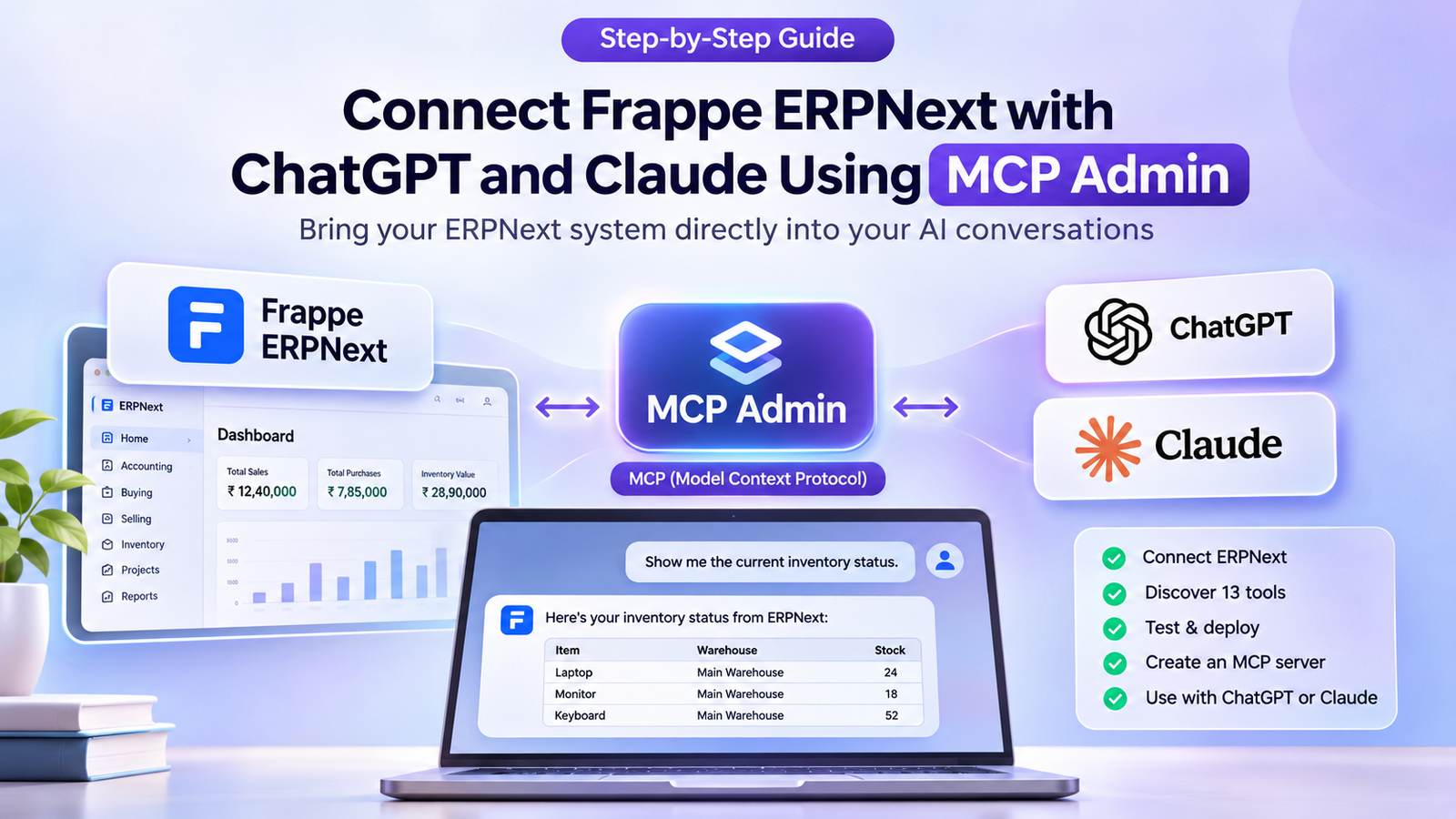
With MCP (Model Context Protocol), you can connect Frappe ERPNext directly to AI assistants like ChatGPT and Claude.
Here’s how we make it happen:
🔹 Connect ERPNext through a custom MCP tool.
🔹 Automatically detect OAuth authentication.
🔹 Authorize access using your ERPNext credentials.
🔹 Instantly discover 13 pre-configured ERPNext tools.
🔹 Register and deploy your MCP client.
🔹 Create a dedicated MCP server for ERPNext.
🔹 Test your tools using natural language prompts.
🔹 Connect the server to ChatGPT or Claude using SSE or HTTP.
And that’s it! Your ERPNext is now accessible through an AI-powered conversational interface.
Imagine asking your AI assistant to:
- Check inventory and stock availability.
- Retrieve sales and purchase orders.
- Access accounting information.
- Manage business records.
- Perform ERP operations through natural language.
We’re moving beyond AI that simply answers questions to AI that can actually interact with business systems.
The future of ERP isn’t just automation. It’s conversational, connected, and AI-powered.
#ERPNext #Frappe #MCP #ModelContextProtocol #ArtificialIntelligence #ChatGPT #ClaudeAI #BusinessAutomation #AgenticAI #DigitalTransformation
Learn how to connect Frappe ERPNext with ChatGPT and Claude using MCP Admin. Follow this step-by-step guide to configure OAuth, register ERPNext tools, deploy an MCP server, and enable AI-powered ERP operations.
ERPNext MCP Integration
Bring your ERPNext system directly into your AI conversations with MCP Admin.
Imagine managing your inventory, accounting, purchasing, and sales operations without constantly navigating your ERP dashboard. What if you could simply ask ChatGPT or Claude to retrieve business information and execute authorized ERP operations through natural-language instructions?
With MCP Admin, you can connect Frappe ERPNext to AI assistants using the Model Context Protocol (MCP).
MCP Admin simplifies the process of connecting external MCP tools, managing authentication, registering clients, deploying dedicated MCP servers, and testing integrations.
In this guide, we’ll demonstrate how to connect ERPNext with your preferred AI assistant using MCP Admin.
What is MCP Admin?
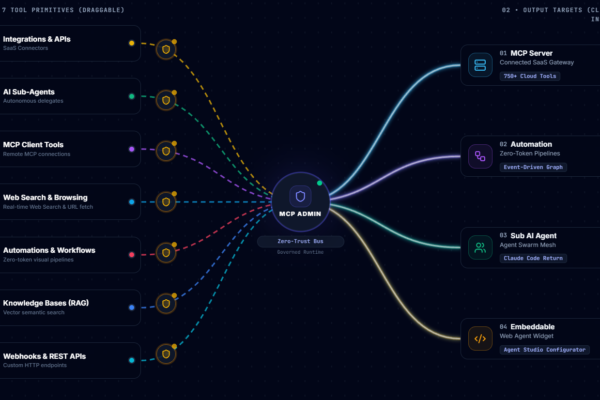
MCP Admin is a platform for managing MCP integrations, clients, tools, and servers.
It provides a centralized environment where you can:
- Connect external MCP services.
- Configure and manage authentication.
- Automatically discover available tools.
- Register MCP clients.
- Create and manage dedicated MCP servers.
- Test integrations using a built-in Test Panel.
- Deploy MCP endpoints for compatible AI applications.
Instead of manually managing every aspect of an MCP integration, MCP Admin provides a streamlined workflow for connecting business applications such as ERPNext to AI assistants.
Why connect ERPNext with AI using MCP Admin?
ERPNext is a comprehensive ERP platform covering accounting, inventory, purchasing, sales, CRM, manufacturing, and more.
However, accessing business information traditionally requires navigating through different modules and interfaces.
By connecting ERPNext through MCP Admin, you introduce a conversational interface between your ERP system and AI assistants.
For example, you can ask:
- Show me all products with zero stock.
- Retrieve the latest purchase orders.
- Find outstanding sales invoices.
- Check available inventory for a particular product.
- Retrieve customer and supplier information.
The AI assistant can discover the relevant ERPNext tools and interact with your system through the MCP connection.
What you’ll need
Before starting, ensure you have:
- A working Frappe ERPNext instance.
- Valid ERPNext credentials and appropriate permissions.
- Access to MCP Admin.
- A compatible AI client, such as ChatGPT or Claude.
Step-by-step: Connect ERPNext using MCP Admin
Step 1: Open MCP Admin Integrations
Log in to your MCP Admin dashboard.
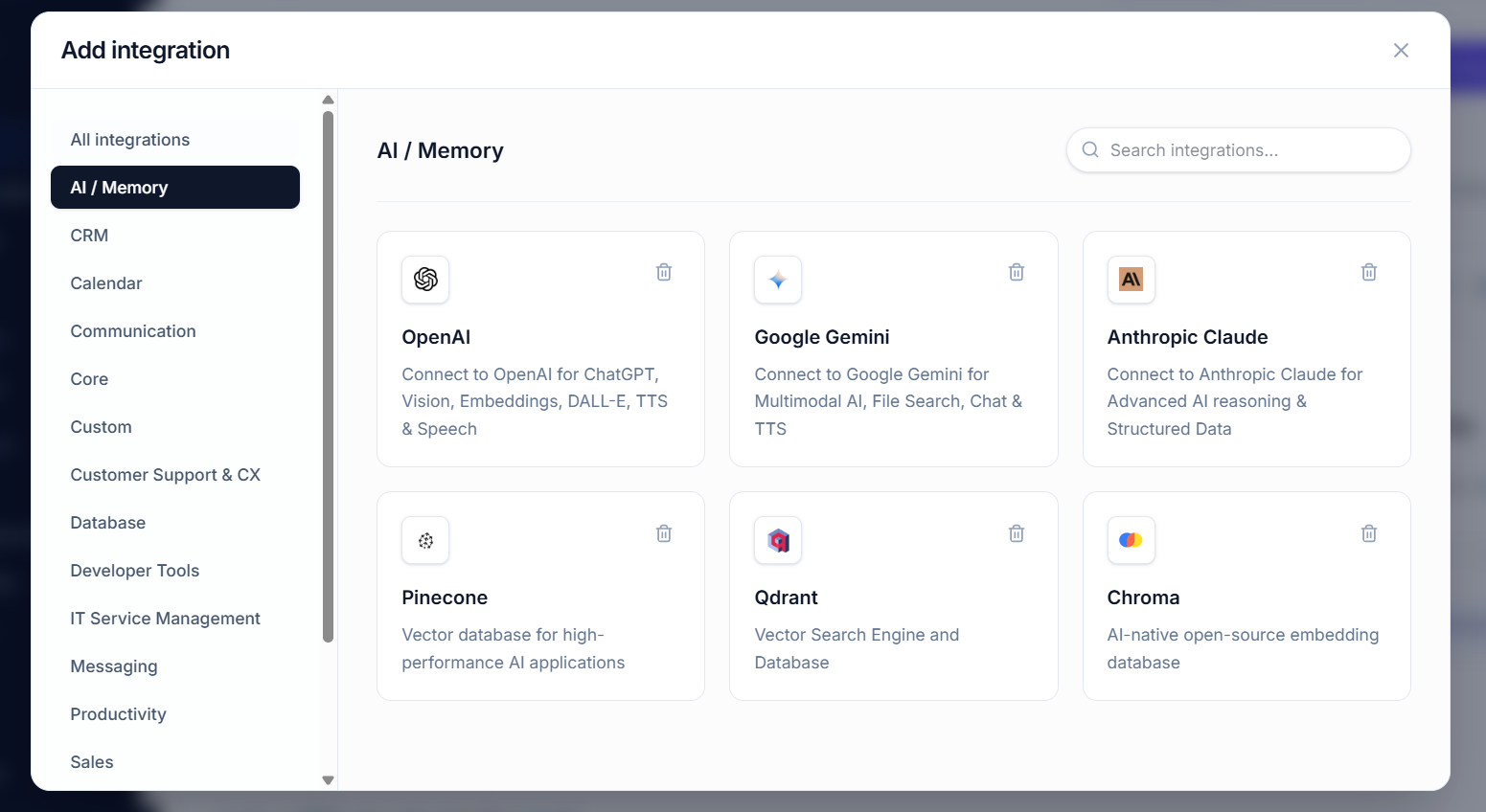
Navigate to the Integrations section and select Add a custom MCP tool.
This is where you’ll register your ERPNext MCP connection.
Step 2: Enter your ERPNext MCP URL
Enter your MCP URL in the designated field.
MCP Admin will use this endpoint to establish the initial connection with your ERPNext integration.
Step 3: Automatic OAuth detection
One of the convenient features of MCP Admin is automatic authentication detection.
After entering the MCP URL, MCP Admin detects the authentication method and automatically configures it to OAuth.
This simplifies the initial configuration process.
Step 4: Authenticate with ERPNext
Click Continue and log in using your standard ERPNext account credentials.
Authorize the connection to establish authenticated communication between MCP Admin and ERPNext.
Step 5: Discover ERPNext tools automatically
Once authentication is successful, MCP Admin automatically discovers and populates 13 pre-configured ERPNext tools in your workspace.
These tools expose ERPNext functionality to compatible AI clients.
You can now manage the discovered tools through the MCP Admin interface instead of manually registering each one.
Step 6: Register the MCP Client
Register the newly created MCP Client tool within MCP Admin.
This prepares the integration for testing and deployment.
Step 7: Test and deploy your tools
Navigate to Test & Deploy.
MCP Admin provides a dedicated interface to:
- Run live diagnostic tests.
- Verify tool connectivity.
- Validate tool functionality.
- Attach tools to an existing server environment.
This allows you to verify your integration before making it available to your AI assistant.
Step 8: Create a dedicated ERPNext MCP server
Create a new MCP server specifically for your ERPNext integration.
Configure the baseline server settings and click Save.
With MCP Admin, you can manage ERPNext as an independent MCP server, keeping its configuration and deployment separate from other integrations.
Step 9: Test ERPNext through MCP Admin
Navigate to MCP Servers and launch the Test Panel.
You can now interact with your ERPNext integration using natural-language prompts.
For example:
“Show me all products with zero stock.”
The Test Panel allows you to verify how the available ERPNext tools respond to conversational instructions.
Step 10: Connect to ChatGPT or Claude
After successfully testing your integration, copy the available SSE or HTTP endpoint from MCP Admin.
Use this endpoint to configure your compatible AI client.
- Claude: Connect the MCP server through its supported MCP connector configuration.
- ChatGPT: Connect through a supported MCP integration or custom plugin environment.
Once configured and authorized, your AI assistant can access the ERPNext tools exposed through MCP Admin.
What can you do with ERPNext and AI?
By connecting ERPNext to AI assistants through MCP Admin, you can explore several practical use cases.
Inventory Management
Check stock availability, identify zero-stock products, and retrieve item information.
Accounting and Finance
Retrieve accounting records, review invoices, and access financial information.
Purchasing and Procurement
Retrieve purchase orders, access supplier information, and streamline procurement workflows.
Sales Management
Access customer records, retrieve sales orders, and assist with sales operations.
AI-powered Business Automation
Combine ERPNext tools with AI reasoning and other MCP integrations to build intelligent business workflows.
MCP Admin: Simplifying AI and Business Integrations
The bigger opportunity goes beyond connecting a single ERP system.
MCP Admin provides a centralized approach to managing MCP tools, clients, and servers, making it easier to bring different business applications into AI-powered environments.
Imagine connecting your ERP, CRM, accounting software, inventory platform, and other business applications to a unified AI assistant.
Instead of switching between multiple applications, employees could interact with their business systems through a conversational interface.
This is where MCP-powered enterprise automation becomes interesting.
Security and deployment considerations
When connecting business applications to AI assistants, security should remain a priority.
We recommend:
- Using dedicated ERPNext accounts with restricted permissions.
- Applying least-privilege access to tools.
- Reviewing which operations can modify business records.
- Requiring human approval for sensitive transactions.
- Securing MCP endpoints and OAuth credentials.
- Maintaining audit logs for AI-initiated operations.
Conclusion
Connecting Frappe ERPNext with AI assistants doesn’t have to involve building a complex integration from scratch.
MCP Admin makes it easier to connect, configure, test, and deploy MCP integrations for applications like ERPNext.
With automatic authentication detection, tool discovery, client registration, server management, and a built-in Test Panel, MCP Admin provides the infrastructure to bring ERPNext into your AI-powered workflows.
The future of enterprise software is moving beyond dashboards and traditional interfaces.
It’s becoming conversational, connected, and powered by intelligent AI agents.
Connect your ERPNext. Deploy with MCP Admin. Bring your business operations into AI conversations.