How to Create Custom Connectors for Claude: Complete Guide (MCP ADMIN Method)
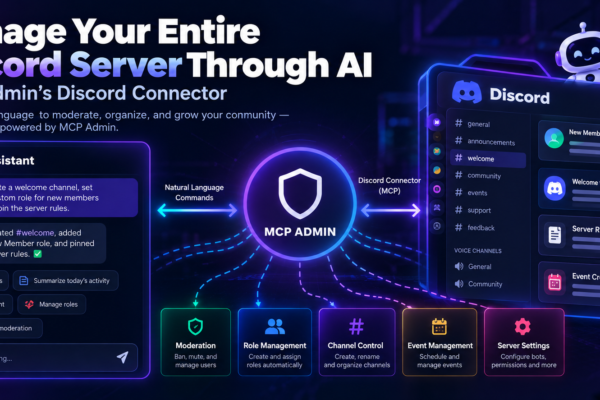
Creating custom connectors for Claude has never been easier! With MCP ADMIN, you can build powerful custom tools and expose them as a single MCP (Model Context Protocol) server that Claude can access directly. This comprehensive guide walks you through the entire process—from building your first tool to connecting it to Claude, ChatGPT, and Google Gemini Spark.
Section 1: Understanding Custom Connectors & MCP Servers
What is a Custom Connector?
A custom connector is a bridge between Claude and external services or tools. Instead of relying on built-in integrations, you can create tailored solutions that connect to proprietary APIs, implement custom business logic, integrate with internal tools and databases, and extend Claude’s capabilities with specialized functions.
What is MCP (Model Context Protocol)?
MCP is a standardized protocol that allows AI models to access tools and external systems. MCP servers expose capabilities (tools) through HTTP/REST endpoints (via MCP ADMIN.cloud) or SSE (Server-Sent Events) streaming connections.
Section 2: Step-by-Step Guide to Create Custom Connectors on MCP ADMIN
Step 1: Access MCP ADMIN Platform
- Navigate to https://mcpadmin.cloud
- Sign in with your credentials (or create a new account)
- Dashboard displays your projects and tools
Step 2: Create Your First Tool
MCP ADMIN allows you to create multiple types of tools. Choose based on your use case:
Available Tool Types on MCP ADMIN:
- Webhook Tool – Receive and respond to webhooks from external services
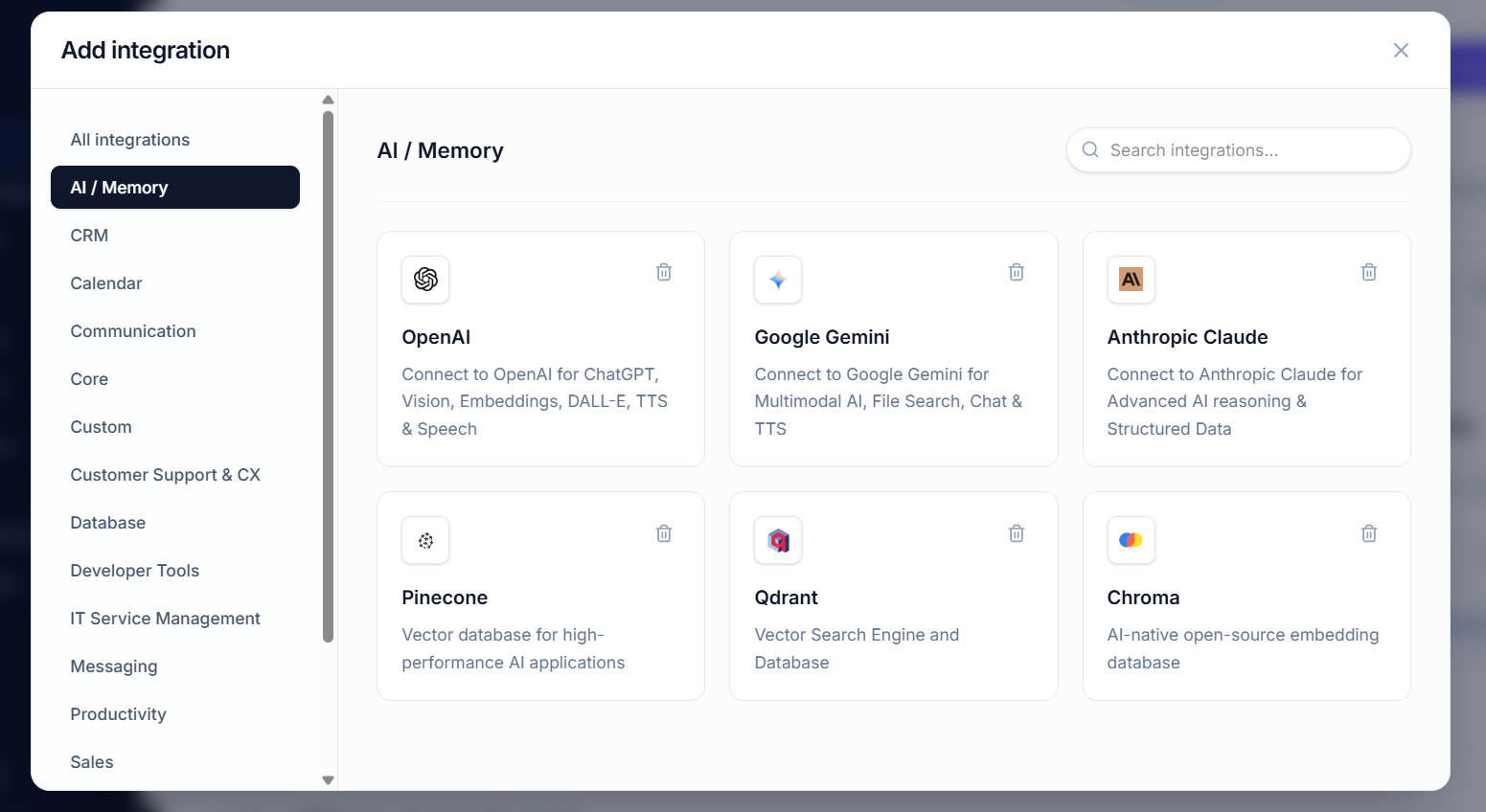
- Integration Tool – Connect to third-party APIs and services
- Knowledge Base Tool – Index and search through documents, guides, and data
- Web Search Tool – Enable Claude to search the internet in real-time
- MCP Client Tool – Connect to other MCP servers and expose their capabilities
Step 3: Generate Your MCP Server Link & API Key
- Click “Generate Server Link” in your project settings
- Choose connection type: HTTP/REST or SSE (Server-Sent Events)
- Generate API Key: Click “Create New API Key”
- Copy the complete link with embedded API key
⚠️ Security Note: Keep your API key private. Treat it like a password.
Section 3: Connecting Your MCP Server to Claude
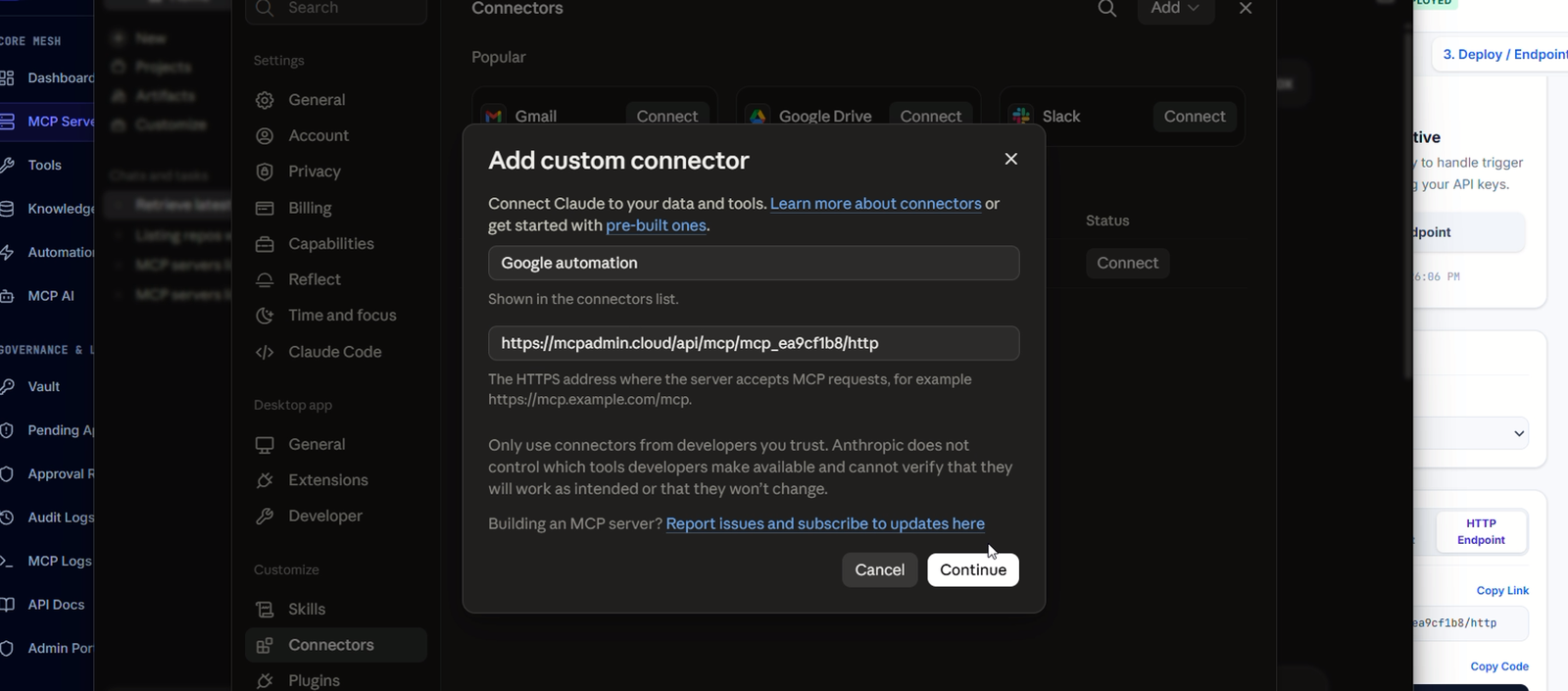
Option A: Direct Connection in Claude Desktop
- Open Claude Desktop
- Navigate to Settings → Developers → MCP Servers
- Click “Add MCP Server” and fill in your configuration
- Click “Connect”
- Your custom tools are now available in Claude!
Option B: Connection in Claude.ai Web
- Go to claude.ai
- Click your profile icon → Settings
- Select “Developer Settings”
- Paste your MCP server URL (with API key)
- Click “Add Connector”
- Tools appear in the left sidebar
Option C: Connection in Claude Mobile App
- Open Claude iOS or Android app
- Tap the Connectors icon (bottom navigation)
- Tap “Add MCP Server”
- Paste the HTTP/SSE URL with API key and confirm
Section 4: Understanding the Five Tool Types
1. Webhook Tool 📨
Purpose: Receive and process incoming webhooks from external services. Use Cases: GitHub event webhooks, payment notifications (Stripe, PayPal), email forwarding, IoT device events.
2. Integration Tool 🔗
Purpose: Connect to third-party APIs and services. Use Cases: CRM integration (Salesforce, HubSpot), project management (Jira, Asana), database queries (MongoDB, PostgreSQL), SaaS platform connections.
3. Knowledge Base Tool 📚
Purpose: Store, index, and search through documents and data. Use Cases: Company knowledge base, product documentation, training materials, policy database, meeting notes archives.
4. Web Search Tool 🔍
Purpose: Enable Claude to search the internet in real-time. Use Cases: Current events research, real-time price checking, product availability, research paper discovery, weather data.
5. MCP Client Tool 🤝
Purpose: Connect to other MCP servers and expose their capabilities. Use Cases: Chaining multiple MCP servers, accessing existing ecosystem tools, combining external tools with custom tools.
Section 5: Single MCP Server with Multiple Tool Types
The key advantage of MCP ADMIN is that one HTTP/SSE URL exposes ALL your tools—Webhook Tool, Integration Tool, Knowledge Base Tool, Web Search Tool, and MCP Client Tool. This unified approach simplifies management and provides a single connection point to Claude, ChatGPT, and Gemini Spark.
Section 6: Creating Custom Connectors for ChatGPT
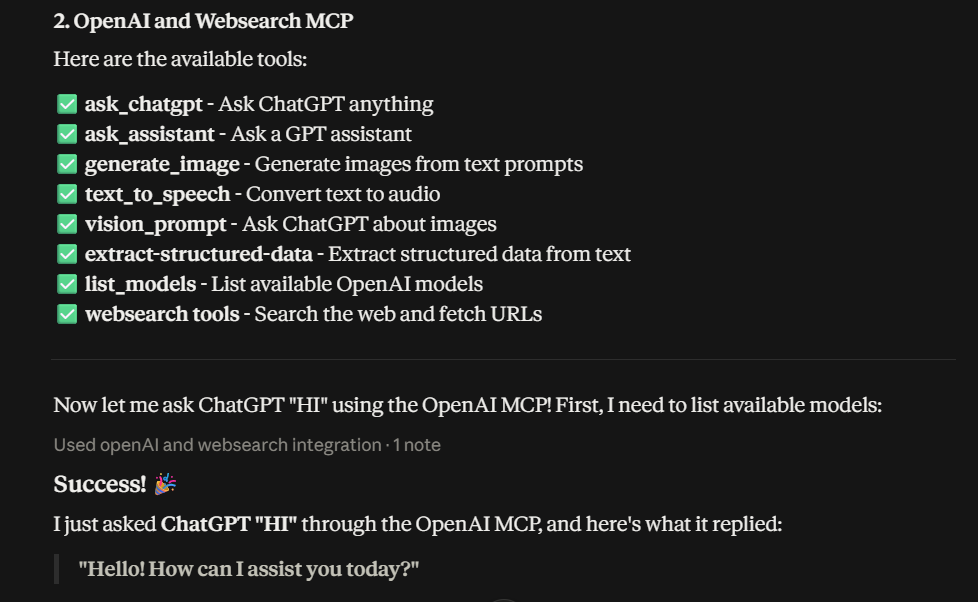
The same MCP server you created for Claude works with ChatGPT! Access OpenAI Platform at platform.openai.com, navigate to Plugins or GPT Builder, export your MCP ADMIN tools as an OpenAPI schema, and configure ChatGPT with your MCP server URL and authentication credentials.
Section 7: Creating Custom Connectors for Google Gemini Spark Apps
Google’s Gemini Spark also supports custom integrations. Access Google AI Studio at aistudio.google.com, create a new Spark App, select Custom REST API, enter your MCP ADMIN URL, add authentication with your API key, and define your tools schema using JSON Schema.
Section 8: Security Best Practices
Protecting Your Custom Connectors: Rotate API keys regularly and use environment variables. Set rate limits to prevent abuse and monitor usage patterns. Use HTTPS/TLS for all connections. Implement OAuth when possible and use IP whitelisting for access control. Log all tool calls and maintain audit trails.
Conclusion
With MCP ADMIN, creating custom connectors for Claude, ChatGPT, and Gemini Spark is straightforward: Build your tools on MCP ADMIN (choose from 5 types), generate your single MCP server URL with API key, connect to your preferred AI platform, and start using your tools immediately. The power is in having one source of truth for all your custom integrations, accessible everywhere.
Next Steps
- Visit MCP ADMIN: https://mcpadmin.cloud
- Create your first tool (choose from 5 types)
- Connect to Claude, ChatGPT, or Gemini Spark
- Start building and integrating!
Created: September 1, 2026
Author: Aayush Pandey
Organization: Zyven Technologies Pvt Ltd