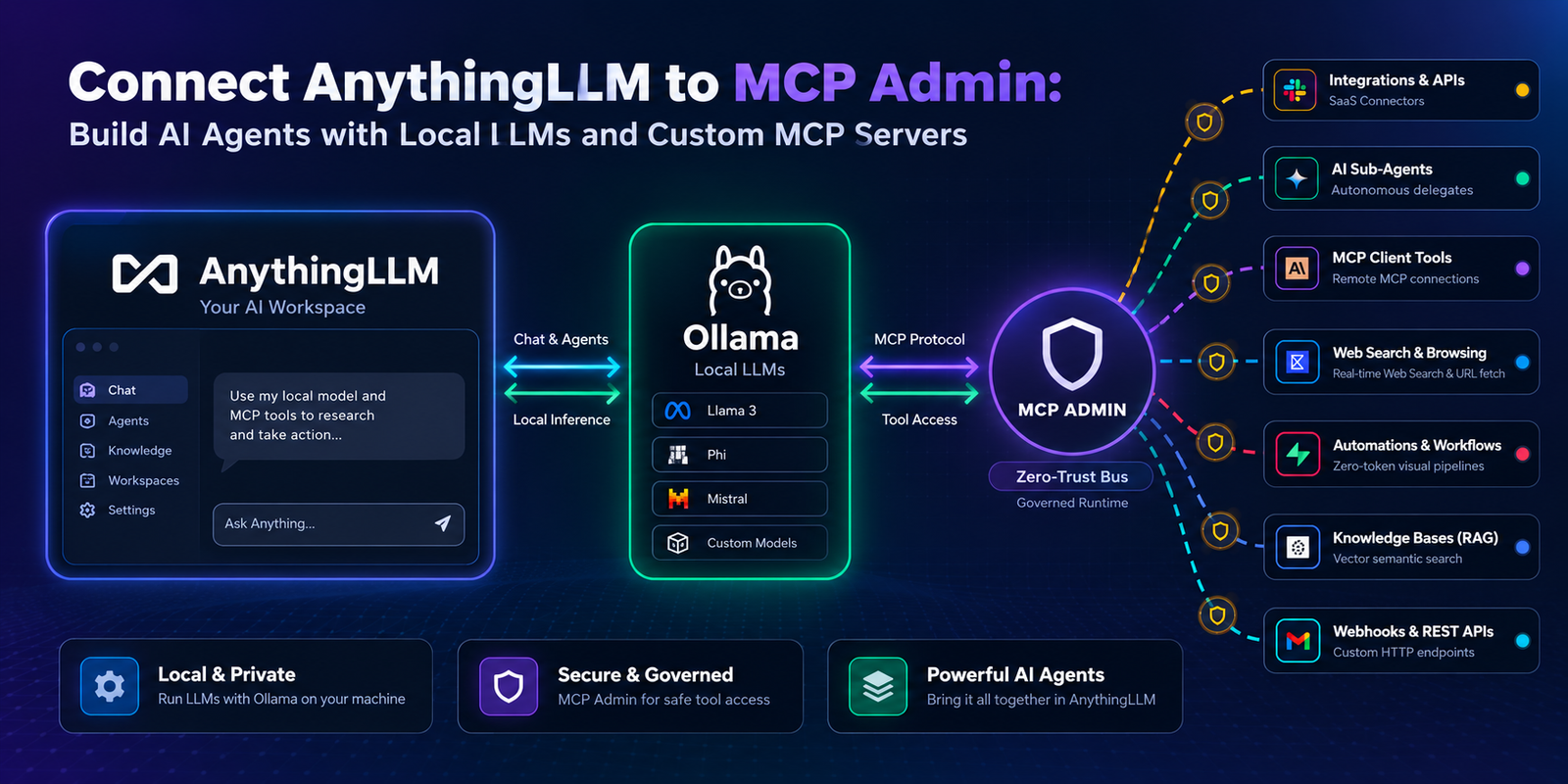
Building AI agents that respect your data privacy and run completely locally is no longer a pipe dream — it’s practical reality. In this guide, we’ll walk through connecting AnythingLLM to MCP Admin to unlock powerful custom MCP servers, all powered by Ollama for local LLM inference.
Why Local AI Agents Matter
Traditional cloud-based AI workflows send your data to third-party servers. For teams handling sensitive information — financial data, proprietary research, customer records — that’s a non-starter. Running AI locally eliminates that risk:
- Data Privacy: Your data never leaves your infrastructure
- Cost Control: No per-token API fees; run models on your own hardware
- Customization: Full control over model selection, fine-tuning, and agent behavior
- Compliance: Meet regulatory requirements for on-premises processing
The Stack: AnythingLLM + MCP Admin + Ollama
AnythingLLM is a self-hosted AI application platform that lets you build multi-agent workflows with full control over your LLM backend. MCP Admin provides a catalog of MCP (Model Context Protocol) servers that extend your AI agents with access to real tools and data. Ollama runs open-source LLMs like Llama 2, Mistral, and Neural Chat entirely on your machine.
Together, these three tools create a local-first AI agent platform with no cloud dependency.
Prerequisites
- Docker (recommended for easy setup)
- Ollama installed and running locally (or via Docker)
- AnythingLLM running locally
- MCP Admin account and API credentials
- At least 8GB RAM (16GB+ recommended for larger models)
Step 1: Set Up Ollama Locally
Start by installing and running Ollama on your machine:
# Download and install from ollama.ai
# Then pull a model (example: Llama 2)
ollama pull llama2

# Start Ollama server (runs on http://localhost:11434)
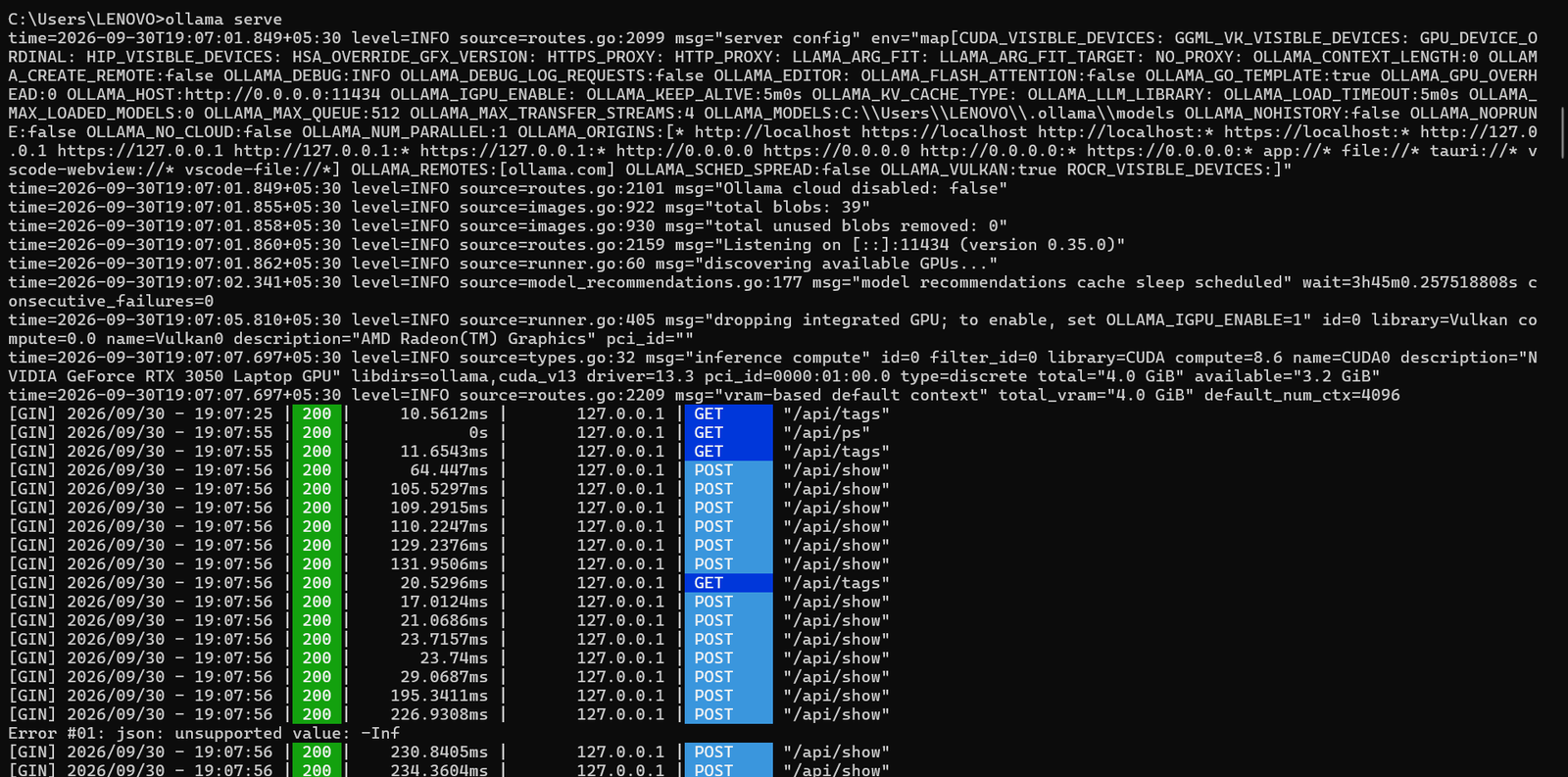
ollama serve
Ollama will download the model and expose a local API endpoint. Verify it’s running:
curl http://localhost:11434/api/tags
Step 2: Deploy AnythingLLM Locally
Use Docker to run AnythingLLM with Ollama as the LLM backend:
docker run -d \
  -p 3001:3001 \
  -e LLM_PROVIDER=ollama \
  -e OLLAMA_BASE_PATH=http://host.docker.internal:11434 \
  -e OLLAMA_MODEL_PREF=llama2 \
  -v anythingllm-data:/app/server/storage \
  --name anythingllm \
  mintplexlabs/anythingllm:latest
Once running, access AnythingLLM at http://localhost:3001.
Step 3: Configure the MCP Admin Gateway
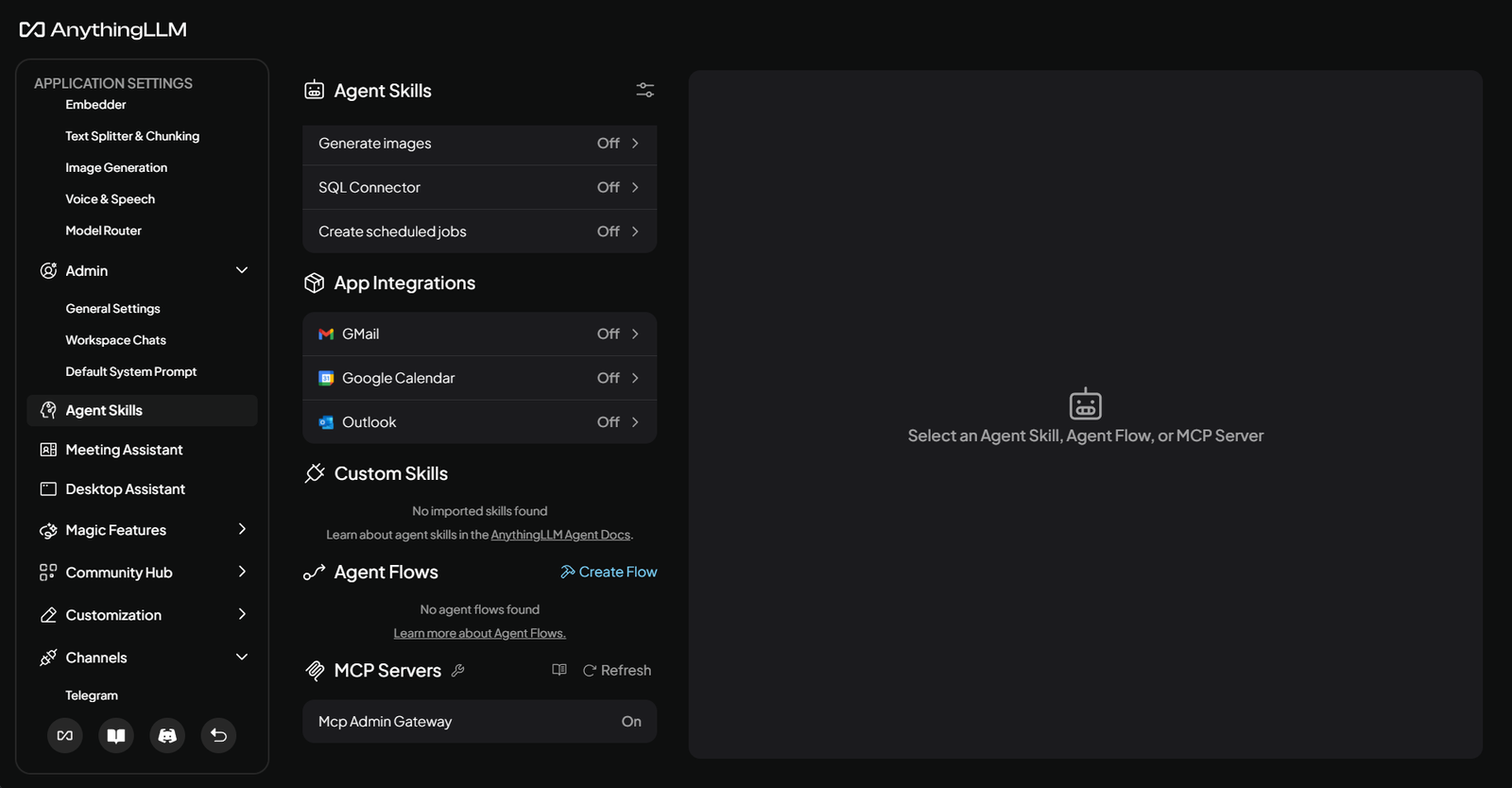
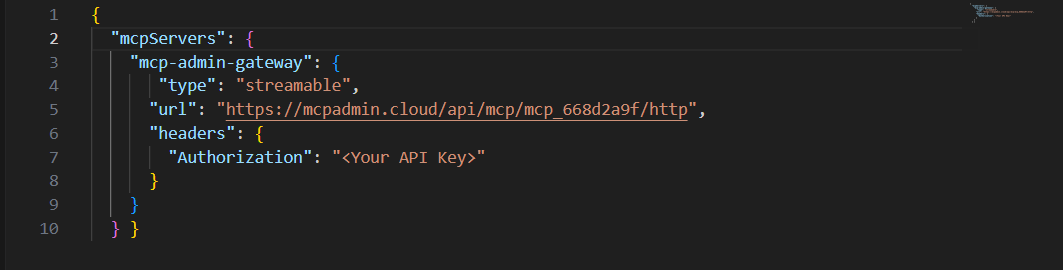
In AnythingLLM, navigate to Settings > MCP Servers and add the MCP Admin gateway. You’ll need to configure it with your MCP Admin API credentials:
{
  "mcpServers": {
    "mcp-admin-gateway": {
      "type": "streamable",
      "url": "https://mcpadmin.cloud/api/mcp/mcp_668d2a9f/http",
      "headers": {
        "Authorization": "<your-api-key>"
      }
    }
  }
}
This connects your local AnythingLLM instance to the MCP Admin platform, giving your agents access to all your configured MCP servers.
Step 4: Enable Custom MCP Servers in MCP Admin
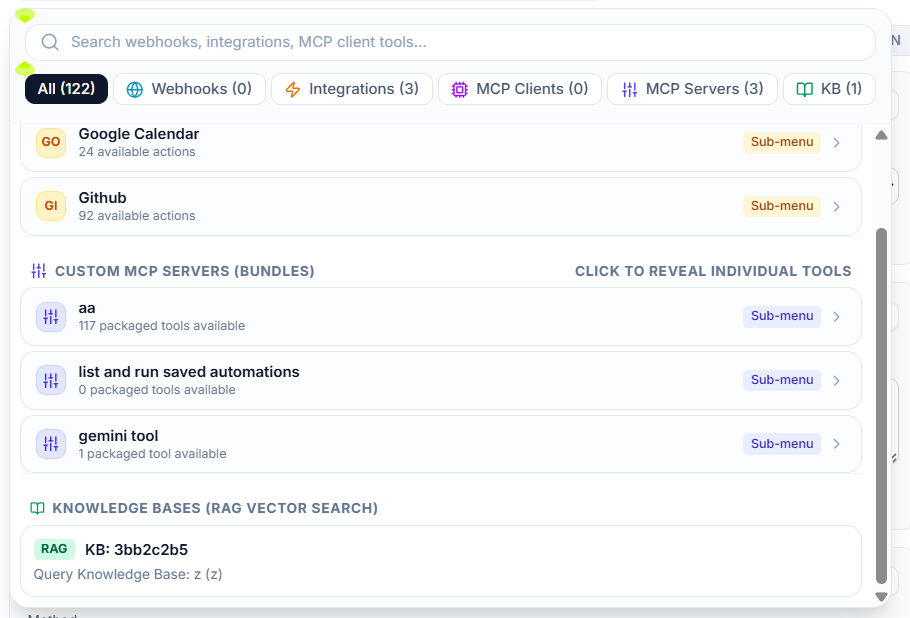
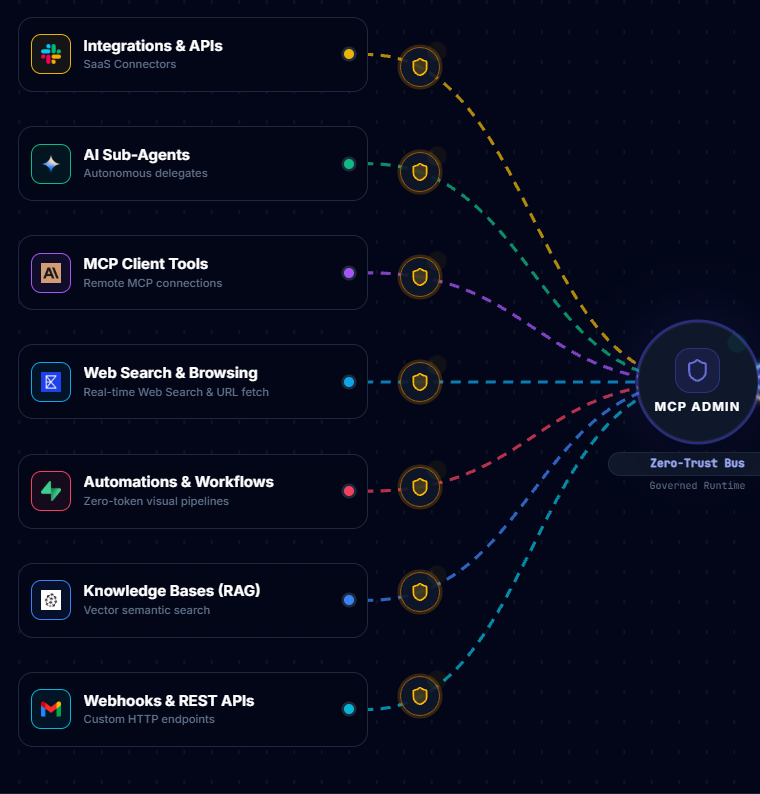
Log into your MCP Admin dashboard and enable the MCP servers you want to expose to AnythingLLM. Common examples:
- WordPress Integration: Create, update, and publish blog posts
- Gmail Integration: Send emails, search messages, manage drafts
- Discord Integration: Post to channels, manage roles and threads
- Custom Databases: Query or write to your own SQL databases
- Business Software: Connect to CRMs, project management tools, or custom APIs
Each server is independently toggled on/off in the MCP Admin dashboard, and only enabled servers are exposed to your AnythingLLM agents.
Step 5: Create Your First AI Agent
In AnythingLLM, create a new workspace and add an agent. Configure it with:
- LLM Model: Ollama (Llama 2 or your chosen model)
- Agent Type: Tool-enabled agent
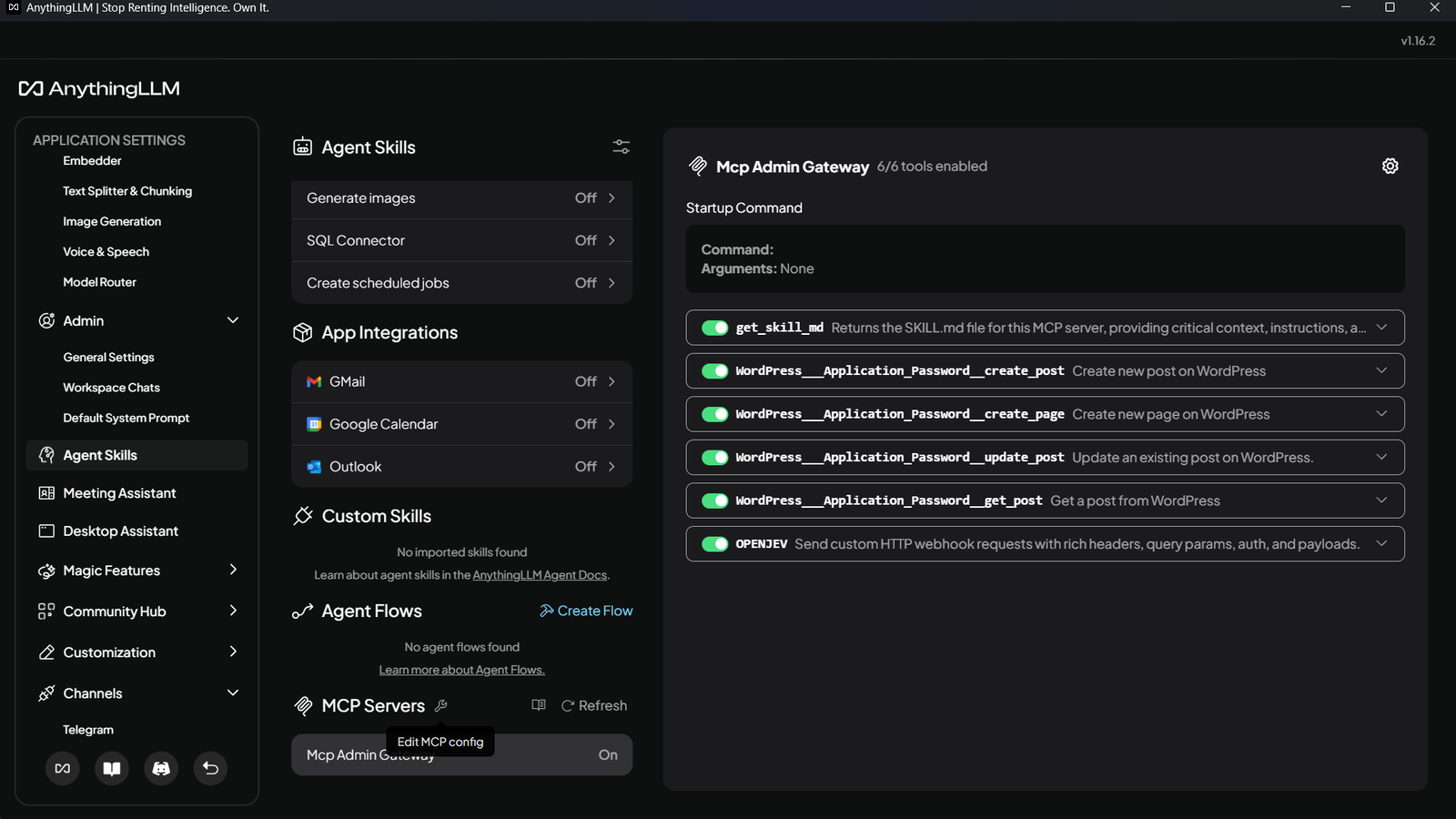
- MCP Servers: Select the MCP Admin gateway and enable the specific tools your agent needs
Your agent now has access to all enabled MCP servers — WordPress, Gmail, Discord, databases, whatever you’ve configured in MCP Admin — while running entirely on your hardware with your data staying local.
Step 6: Test End-to-End
Try a multi-step workflow:
“Research competitor trends, draft a blog post summary, and publish it to my WordPress blog with a featured image. Send me an email confirmation when done.”
Your local AnythingLLM agent will:
- Use its research tools (via MCP) to gather information
- Draft the content using your local Ollama model
- Create and publish the post via the WordPress MCP server
- Send confirmation via Gmail
All of this happens on your infrastructure, with zero API calls to external LLM providers.
Security & Deployment Best Practices
- Firewall Rules: Restrict access to AnythingLLM and Ollama to localhost or your internal network only
- API Key Rotation: Regularly rotate MCP Admin API keys and other sensitive credentials
- Resource Limits: Set memory/CPU limits on Docker containers to prevent runaway processes
- Logging: Enable audit logs in AnythingLLM to track agent actions and data access
- Model Selection: Choose smaller, quantized models (7B-13B) for resource-constrained environments
Troubleshooting Common Issues
Issue: AnythingLLM can’t connect to Ollama
Solution: Make sure Ollama is running and accessible at the configured URL. Inside Docker, use host.docker.internal:11434 instead of localhost.
Issue: MCP servers not appearing in agent tools
Solution: Verify your MCP Admin API key is correct and the gateway is configured in Settings > MCP Servers. Ensure the tools are enabled in your MCP Admin dashboard.
Issue: Agent responses are slow
Solution: Your model may be too large for your hardware. Try a smaller model (e.g., Mistral 7B instead of Llama 2 70B), or increase RAM/VRAM allocation to Ollama.
What’s Possible Now
With AnythingLLM, Ollama, and MCP Admin working together, you can build:
- Content management AI agents that research, write, and publish automatically
- Support bots that handle customer queries and log responses to your CRM
- Internal automation workflows that query databases, send alerts, and update project management tools
- Data analysis agents that pull from your systems and generate reports
And crucially, all of this happens with your data staying on your infrastructure.
Next Steps
Ready to build? Start by:
- Installing Ollama and pulling a model
- Deploying AnythingLLM via Docker
- Connecting your MCP Admin gateway
- Creating your first agent with access to one MCP server
- Expand from there based on your use case
The future of AI is local, private, and in your control. Make it happen.