Local AI Sub-Agents: Connect Ollama Models to OpenAI, Gemini and Claude with MCP Admin
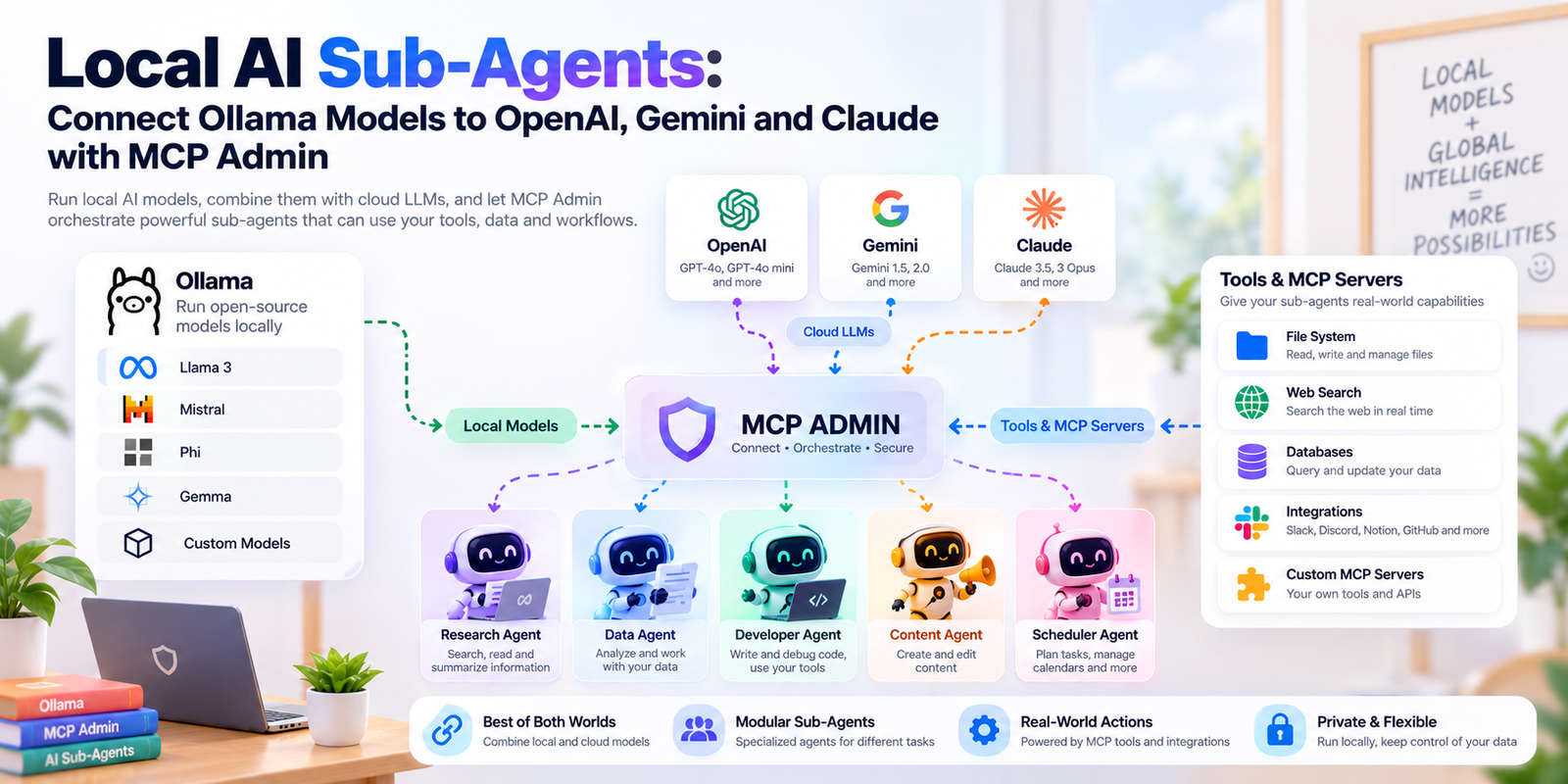
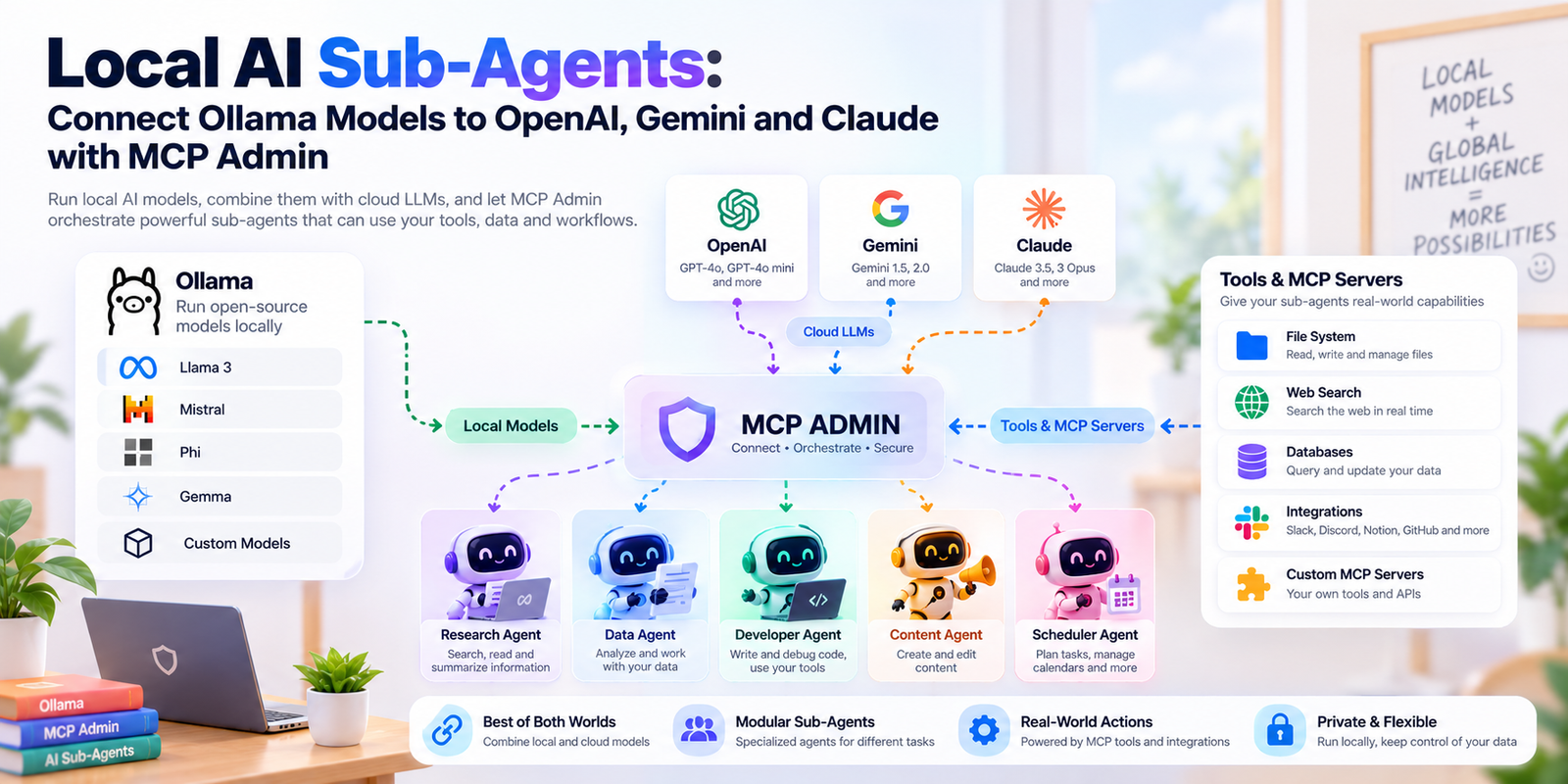
Local AI sub-agents let a private model running on your own machine delegate complex work to powerful cloud models like OpenAI’s ChatGPT, Google Gemini, and Anthropic Claude. In this guide, you’ll build that setup with Ollama, Qwen3, AnythingLLM, and MCP Admin. The result is a fast, private local assistant that can call on frontier-model intelligence, along with all the tools you’ve packed into each sub-agent, whenever a task needs it.
By the end, you’ll be able to tell your local model, “hand this off to ChatGPT,” and have it happen automatically.
Why Use Local AI Sub-Agents?
Running a model locally is attractive. It’s private, free per token, and works offline. But local models have limits. A 7B or 8B parameter model won’t match a frontier model on deep reasoning, long-document analysis, or heavy code generation.
The usual choices are to live with those limits or abandon local models entirely. Local AI sub-agents give you a third path: use the local model as the orchestrator and cloud models as specialists.
- Privacy first: Your conversations and files stay local by default. Only the specific task you delegate leaves your machine.
- Cost control: Routine questions run on your hardware for free. You pay for cloud tokens only on the hard tasks.
- Best model for each job: Route a coding problem to one provider, a research task to another, and a summarization job to a third.
- Tools included: Each sub-agent in MCP Admin can come packed with its own tools, instructions, and capabilities, so your local model gains skills it could never run itself.
What You’ll Need for Your Local AI Sub-Agents Setup
- A computer with enough RAM for your chosen local model (8 GB minimum, 16 GB or more is better)
- An MCP Admin account
- API access or connected accounts for the cloud providers you want your sub-agents to use
- About 20 to 30 minutes
New to MCP Admin? Read our complete guide to connecting MCP servers to Claude Desktop first for background on how MCP servers and connectors work.
How the Architecture Works
Here’s the flow, so each step makes sense as you go:
- AnythingLLM is your chat interface and agent runner.
- Ollama serves a local model such as Qwen3 to AnythingLLM.
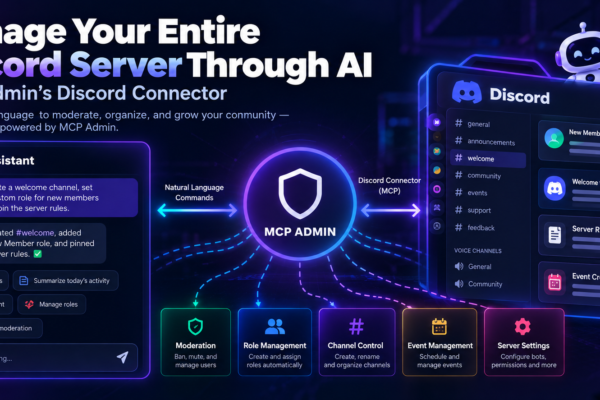
- MCP Admin hosts your sub-agents and exposes them through an MCP server.
- The MCP server offers an
ask_agenttool. - When your local model decides a task is too complex, it calls
ask_agent, and the sub-agent runs on ChatGPT, Gemini, or Claude with its own tools. - The answer comes back to your local model, which presents it to you.
Your local model never needs an API key for the cloud providers. It only needs to know how to reach the MCP server.
Step 1: Download and Install Ollama
Ollama is the easiest way to run large language models on your own computer. It handles model downloads, hardware acceleration, and a local API server.
- Visit ollama.com and download the installer for macOS, Windows, or Linux.
- Run the installer and follow the prompts.
- Open a terminal and confirm it works:
ollama --versionIf you see a version number, Ollama is ready. It also runs a local server on port 11434, which AnythingLLM will connect to later.
Step 2: Install a Local Model Like Qwen3
Your local model is the brain of your local AI sub-agents setup, so choose one with solid tool-calling support. Qwen3 is a strong choice because it handles instructions and function calling well for its size.
Pull the model:
ollama pull qwen3Then test it:
ollama run qwen3Ask it a quick question, then type /bye to exit.
Picking the right size: Qwen3 comes in several sizes. Smaller variants run on modest laptops, while larger ones give better reasoning but need more memory. Start small, and move up if you have the RAM. Because the sub-agents handle the hardest tasks, even a compact local model works well as an orchestrator.

Step 3: Install AnythingLLM
AnythingLLM is an open-source workspace app that gives your local model a chat interface, document handling, and, most importantly, agent skills with MCP support.
- Go to anythingllm.com and download the desktop app for your operating system.
- Install and launch it.
- When prompted for an LLM provider, choose Ollama.
- Select the Qwen3 model you pulled in Step 2. The base URL is usually
http://127.0.0.1:11434. - Finish the setup wizard and create your first workspace.
Send a test message in the workspace to confirm the local model responds. If it does, the local half of your stack is done.
Step 4: Create Your Sub-Agent on MCP Admin and Expose the ask_agent Tool
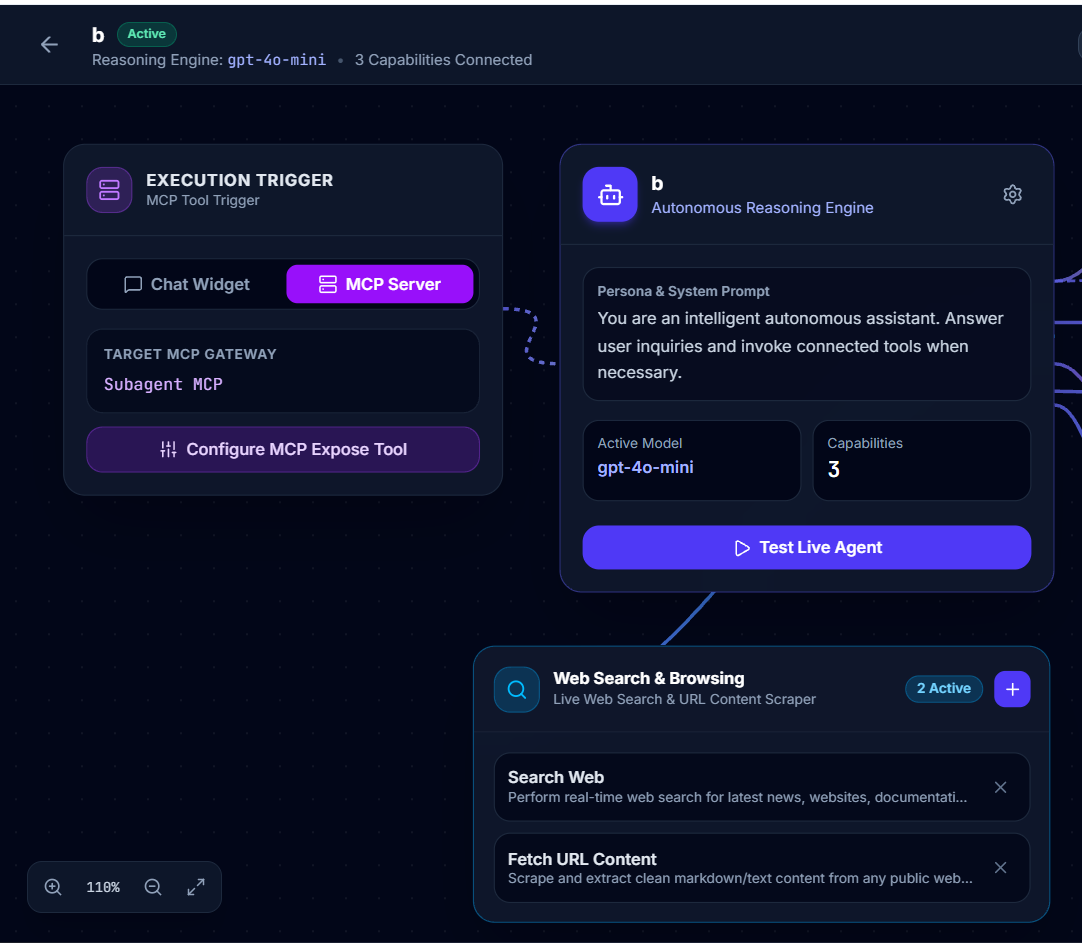
This step turns a plain local model into one that can call on frontier intelligence. In MCP Admin, you’ll create a sub-agent and publish it through a new MCP server.
- Log in to MCP Admin and open your dashboard.
- Create a new sub-agent. Give it a clear name and purpose, such as “Deep Research Agent” or “Senior Code Reviewer.”
- Choose the underlying model. Pick the provider that fits the job, whether OpenAI ChatGPT, Google Gemini, or Anthropic Claude.
- Write the agent’s instructions. Describe its role, tone, and boundaries. The clearer the instructions, the better your local model’s handoffs will go.
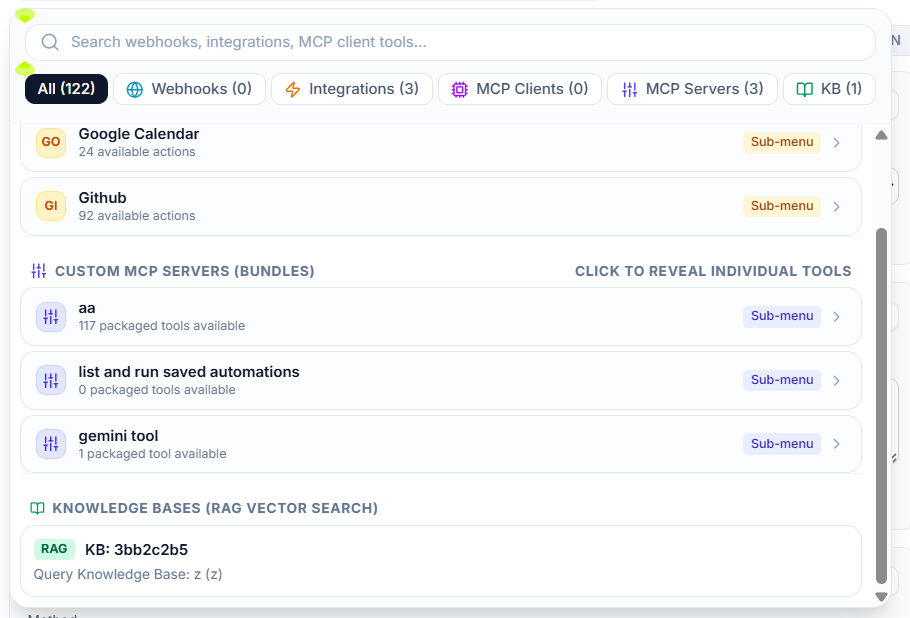
- Attach tools and capabilities. This is where sub-agents stand out. Connect the tools the agent should use, such as web search, document access, WordPress, or other integrations.
- Create a new MCP server and expose the
ask_agenttool through it. - Copy the MCP server URL. You’ll need it in the next step.
Tip: Create more than one sub-agent. A research agent on one model, a coding agent on another, and a writing agent on a third give your local model a team of specialists to delegate to.
Step 5: Add the MCP Server in AnythingLLM Agent Skills
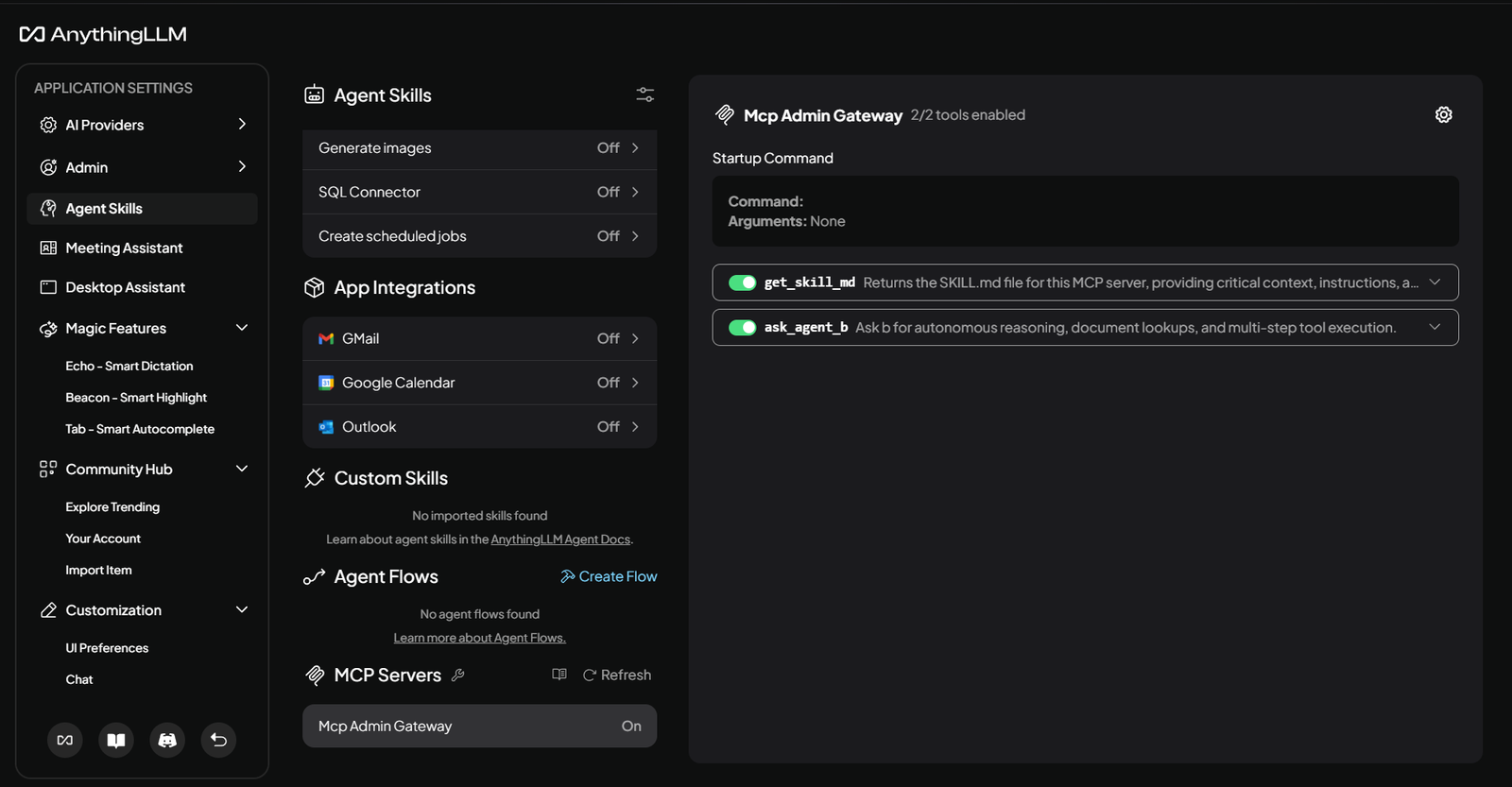
Now connect your local model to the sub-agent.
- In AnythingLLM, open Settings and go to Agent Skills.
- Find the MCP Servers section and open the MCP server configuration.
- Add your new MCP Admin server using the URL you copied in Step 4. The configuration follows this general shape (check the AnythingLLM documentation for the exact transport settings in your version):
{
  "mcpServers": {
    "mcp-admin-sub-agents": {
      "type": "streamable",
      "url": "YOUR_MCP_ADMIN_SERVER_URL"
    }
  }
}- Save the configuration and refresh the server list.
- Confirm that the
ask_agenttool appears and is enabled.
If the tool doesn’t appear, double-check the URL, make sure the server is active in MCP Admin, and reload AnythingLLM.
Step 6: Ask Your Local Model to Hand Over Complex Tasks
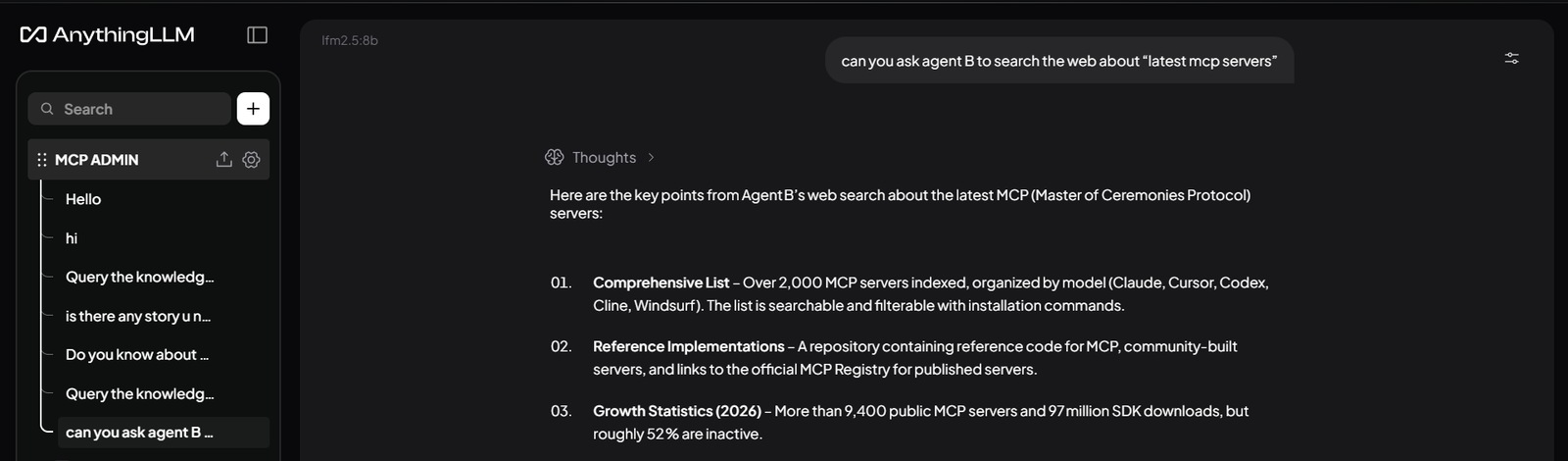
Everything is connected, so you can try it out. In AnythingLLM, start your message with @agent to activate agent mode, then describe the task and name the model you want.
Here are some prompts to try:
- “@agent Ask the research agent to compare the top five vector databases and summarize the trade-offs.”
- “@agent Hand this Python function to ChatGPT and ask for a security review.”
- “@agent Use Gemini to summarize the key points of this long report.”
- “@agent Ask Claude to rewrite this draft in a more concise, professional tone.”
Your local Qwen3 model reads the request, recognizes that it needs a specialist, calls ask_agent, and returns the cloud model’s answer in your chat.
Real-World Use Cases for Local AI Sub-Agents
Private document workflows. Keep sensitive files in AnythingLLM and query them locally. Delegate only anonymized or non-sensitive questions to a cloud sub-agent.
Coding assistance. Use the local model for quick edits and explanations, and hand tough debugging or architecture reviews to a stronger sub-agent.
Content creation. Draft ideas locally, then send the polishing, SEO analysis, or publishing steps to a sub-agent that has WordPress tools attached.
Research and analysis. Let the local model plan the research, then delegate the deep dive to a sub-agent with web search and long-context capacity.
Multi-provider routing. Compare answers from ChatGPT, Gemini, and Claude on the same question without leaving your local chat window.
Troubleshooting Common Local AI Sub-Agent Problems
The ask_agent tool doesn’t show up in AnythingLLM. Check that the MCP server URL is correct, the server is running in MCP Admin, and you’ve saved and reloaded the MCP configuration.
The local model ignores the tool. Some models handle tool calling better than others. Make sure you’re using agent mode (@agent), and consider a larger Qwen3 variant. Be explicit in your prompt, for example “use the ask_agent tool.”
Responses are slow. Local inference speed depends on your hardware. Try a smaller model, close memory-hungry apps, or confirm that Ollama is using your GPU. Cloud sub-agent response time depends on the provider and the task.
The sub-agent gives off-target answers. Refine the agent’s instructions in MCP Admin. Specific roles, output formats, and constraints improve results.
Authentication errors. Re-check the provider connection on your sub-agent in MCP Admin and confirm your credentials are still valid.
Security and Privacy Best Practices
- Delegate deliberately. Anything you send through
ask_agentleaves your machine and goes to the cloud provider, so don’t pass secrets or regulated data. - Limit tool access. Give each sub-agent only the tools it needs.
- Keep the MCP server URL private. Treat it like a credential.
- Review agent instructions regularly. Update them as your workflows change.
- Monitor usage. Keep an eye on provider usage so cloud costs stay predictable.
Frequently Asked Questions About Local AI Sub-Agents
What are local AI sub-agents?
They are cloud-powered AI agents that a local model can call on for specialized or complex tasks. The local model orchestrates, and the sub-agents do the heavy lifting.
Do I need a powerful computer?
No. Because the heavy work is delegated, a modest machine running a small Qwen3 model can still serve as an effective orchestrator.
Can I use models other than Qwen3?
Yes. Any Ollama model with reliable tool-calling support can work. Qwen3 is a good starting point.
Does my local model need OpenAI, Gemini, or Claude API keys?
No. The provider connections live in your MCP Admin sub-agents, and your local setup only needs the MCP server URL.
Is the local model’s data sent to the cloud?
Only what the local model chooses to pass through ask_agent. Everything else stays on your machine.
Can I connect more than one sub-agent?
Yes. Create as many sub-agents as you like in MCP Admin, each with its own model, instructions, and tools.
Conclusion
Local AI sub-agents combine the privacy and low cost of a local model with the power of frontier cloud models. With Ollama, Qwen3, AnythingLLM, and MCP Admin, you can build the whole setup in under half an hour. Your local model stays in charge, and whenever a task is too big for it, it hands off to ChatGPT, Gemini, or Claude through a single ask_agent tool.
Ready to build yours? Log in to MCP Admin, create your first sub-agent, and give your local model a team of specialists.